Last Updated: October 22, 2026
Reading Time: 16 minutes
Post Views: 36
- Which WooCommerce to Shopify Migration Tools Should You Compare?
- Best Tools for WooCommerce to Shopify Migration
- Migration Tool Comparison: Features, Costs, and Limitations
- What Data Can These Migration Tools Transfer?
- Data Transfer vs. Functionality: What Migration Tools Don't Replace
- What Migration Tools Don't Handle Automatically?
- Can You Test a Migration Before Doing the Full Migration?
- How Much Do WooCommerce to Shopify Migration Tools Cost?
- Do You Need a Migration Tool at All?
- Before choosing a migration tool, document:
- How to Choose the Right Migration Tool
- Which Migration Tool Fits Your Requirements?
- What Happens to SEO During the Migration?
- What Should You Test Before Launch?
- Common Migration Tool Limitations and Mistakes to Avoid
- Frequently Asked Questions
Choosing a WooCommerce to Shopify migration tool involves more than comparing prices or checking how many products it can transfer. You also need to know which data types it supports, how it handles custom fields and relationships, what testing options it provides, and how much work you’ll need to complete separately.
Some tools automate the transfer of products, customers, orders, and other store data. Others focus on bulk imports and exports or give you more control over how data is mapped and updated. Their capabilities, pricing models, and limitations vary.
In this guide, we’ll compare WooCommerce to Shopify migration tools, examine their features and limitations, and explain which options may suit different store requirements. You’ll also learn what to verify before choosing a tool, including data coverage, testing, SEO considerations, integrations, and final synchronization.
Which WooCommerce to Shopify Migration Tools Should You Compare?
The right WooCommerce to Shopify migration tool depends on the data you need to transfer, the level of automation you want, and how much control you need over the process.
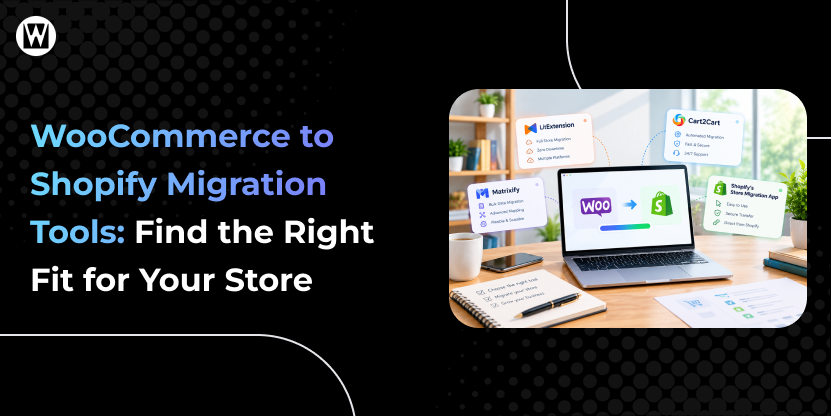
- LitExtension: Consider it for an automated migration workflow with a demo option.
- Cart2Cart: Consider it for automated migration with support for a range of store data.
- Matrixify: Consider it when you need spreadsheet-based bulk data management and greater control over imports and exports.
- Shopify’s own migration options: Review the currently available Shopify-supported methods for the specific data you need to import.
- CSV or manual imports: Consider these for selected data types or relatively simple stores.
No tool should be selected on name alone. Compare its current feature set, pricing, supported data, testing options, and limitations against your store’s requirements.
Best Tools for WooCommerce to Shopify Migration
1. LitExtension
LitExtension is an automated store migration tool that helps transfer supported WooCommerce data to Shopify. It offers a demo migration so you can inspect sample results before proceeding with the full transfer.
Best for: Store owners who want an automated migration workflow for products, customers, orders, content, and other supported data, with an opportunity to review a sample transfer first.
Key features:
- Transfers supported data such as products, customers, orders, categories, coupons, pages, and blog posts.
- Supports images and SEO-related URL data for applicable migration entities.
- Provides migration configuration options to help handle differences between WooCommerce and Shopify.
- Offers self-service migration and an expert-assisted service option.
Testing options: LitExtension offers a free demo migration. Use it to inspect representative records and identify potential mapping or data issues before proceeding. Check which entities and records are included in the demo.
Pricing approach: A free demo is available. Full migration pricing depends on the migration scope and selected service. Request an estimate based on the data you need to transfer rather than assuming the demo covers the full migration.
Limitations to check: Confirm support for custom fields, plugin-specific data, complex product variations, customer and order records, and the SEO elements important to your store. Some requirements may need additional configuration or specialist assistance.
Before choosing: Run a demo using representative products and other important records. Compare the results with your WooCommerce source data, paying particular attention to custom fields, variants, images, and URL handling.
2. Cart2Cart
Cart2Cart provides an automated migration workflow for transferring supported store data from WooCommerce and other platforms to Shopify. Its Shopify app listing describes migration testing, SEO-related data support, and options for updating data during the migration process.
Best for: Merchants who want an automated migration option with support for multiple store-data types and a way to test the transfer before going live.
Key features:
- Supports migration of products, customers, orders, categories, images, and other available data.
- Lists support for SEO data and URLs, including 301 redirects.
- Offers migration testing before the final transfer.
- Provides options for keeping selected products, customers, and orders updated during migration.
Testing options: The app advertises migration testing before going live. Confirm the available test process, its scope, and whether it covers the entities and options you plan to use.
Pricing approach: The Shopify app is free to install, but additional migration charges apply. Costs depend on factors such as store size, the data being migrated, and selected options.
Limitations to check: Verify how the tool handles custom fields, plugin-specific data, reviews, product variations, historical orders, and your required SEO fields. Confirm whether any additional options or services are needed for your store.
Before choosing: Request a migration estimate and test the data types that matter most to your business. Check the imported records and confirm how final synchronization will work if your WooCommerce store continues receiving orders during the migration.
3. Matrixify
Matrixify is a Shopify data import and export tool designed for bulk data management. Its WooCommerce migration workflow uses the WooCommerce API to transfer supported data into Shopify, with options to inspect converted data before performing the actual import.
Best for: Store owners and technical teams who want greater control over bulk data imports, field mapping, and validation, particularly when the migration requires structured data handling.
Key features:
- Supports migration of products, collections, customers, orders, discounts, blog posts, pages, and URL redirects through its documented WooCommerce workflow.
- Supports Shopify data imports and exports using structured files and templates.
- Provides control over data fields and import operations.
- Supports incremental migration workflows for certain updated customer and order records.
Testing options: Matrixify provides a Dry Run option that lets you inspect converted data before importing it into the store. You can also test the workflow in a development store before running the production import.
Pricing approach: Matrixify offers a free plan, with paid plans available. Review the current plan limits, usage allowances, and pricing to determine whether they fit the size and frequency of your imports.
Limitations to check: The documented WooCommerce migration workflow does not automatically transfer the WordPress theme and design, WordPress plugins, payment and shipping settings, or product reviews. These need separate handling. Also verify the WooCommerce API requirements and the treatment of custom or plugin-specific data.
Before choosing: Run a Dry Run and review the converted data before importing it. Confirm that the required records, relationships, fields, and URL redirects are represented correctly, and identify which storefront features must be configured separately.
4. Shopify's Store Migration App
Shopify’s Store Migration app is a first-party option for importing WooCommerce product data into Shopify. Shopify’s documentation describes it as an early-access feature with availability restrictions, so check eligibility before relying on it.
Best for: Merchants who primarily need to import standard product data from WooCommerce and whose requirements fit the app’s supported scope.
Key features:
- Imports WooCommerce product data using a CSV exported from WooCommerce.
- Lets you upload the exported file and start the product import through Shopify’s admin.
- Provides an import report showing how many items were imported and identifying issues that occurred during the import.
Testing options: Shopify documents an import review and results report, rather than a full-store migration demo comparable to every third-party tool. Preview and verify the imported products, and use a suitable test environment or carefully selected sample where available before committing to a larger import.
Pricing approach: Review Shopify’s current documentation and app availability for the applicable requirements. Do not assume that using this product-import option covers all migration needs or that every related task is included at no additional cost.
Limitations to check: Shopify currently documents the app as an early-access option with limited availability. Its documented scope is product import, not a complete transfer of every store entity. Shopify also notes that products with more than three options won’t have those options imported through this workflow.
Before choosing: Check whether the app is available to your store and whether product import meets your requirements. If you also need customers, historical orders, reviews, blog posts, custom data, or more complex migration functionality, evaluate other supported methods for those items.
Which Tool Should You Consider First?
There is no single best migration tool for every WooCommerce store. LitExtension and Cart2Cart are worth evaluating for automated migration workflows, Matrixify is worth considering for controlled bulk data imports and validation, and Shopify’s own Store Migration app may suit simpler product-import requirements.
Before making a decision, compare the tools against the same checklist: required data types, custom-field support, testing options, pricing, synchronization, SEO-related capabilities, and the work that must be completed separately. Choose the tool that meets your store’s actual requirements rather than the one with the longest feature list.
Migration Tool Comparison: Features, Costs, and Limitations
| Tool | Best suited for | Main data scope | Automation | Control | Testing | Key limitation |
|---|---|---|---|---|---|---|
| Shopify Store Migration app | Straightforward product migration | WooCommerce products via CSV | High for supported product imports | Lower | Import report | Early access and currently focused on product import |
| LitExtension | Automated store migration | Products, customers, orders, categories, images, reviews, SEO-related data, and other supported entities | High | Moderate | Free demo migration | Custom data and plugin-specific requirements need verification |
| Cart2Cart | Broad automated migration | Products, variants, customers, orders, categories, images, reviews, discounts, inventory, SEO data, URLs, metafields, and other supported entities | High | Moderate | Migration testing | Exact capabilities and costs depend on migration scope and configuration |
| Matrixify | Detailed data migration and bulk data control | Products, collections/categories, customers, orders, discounts, pages, blog posts, redirects, and supported custom data | High, with configuration | High | Dry Run | More technical; themes, plugins, payment/shipping settings, and product reviews require separate handling |
| Other Shopify migration apps | Specific migration requirements | Varies by app | Varies | Varies | Varies | Check the exact entities, mapping, testing, and limitations |
The goal of this table is not to identify one universal winner. It is to show why the same migration tool may work well for one store and poorly for another.
A migration tool may transfer the underlying data without recreating the functionality that depended on the old WooCommerce environment.
What Data Can These Migration Tools Transfer?
Migration tools differ in the data they support, the way they map fields, and the level of control they provide over imported records. Before choosing a tool, identify which of the following your store needs to transfer and verify that the tool supports each requirement.
- Products, variants, images, and categories
- Customer records and order history
- Pages, blog posts, and other content
- Product reviews and ratings
- SEO metadata and URL-related data
- Custom fields and metafields
- Inventory data and supported integrations
Do not assume that a tool supports every item in this list. Confirm support for your specific data structure, custom fields, and relationships before paying for a migration.
For example, Matrixify documents support for products, categories, customers, orders, coupons, blog posts, pages, redirects, and custom data, while its WooCommerce documentation specifically excludes themes, plugins, payment and shipping settings, and product reviews from its migration process.
Cart2Cart’s current Shopify listing includes products, customers, orders, categories, images, reviews, SEO data, and other entities among its supported migration capabilities.
Always compare the tool against your actual WooCommerce store, not just its headline feature list.
Data Transfer vs. Functionality: What Migration Tools Don't Replace
A migration tool transfers supported data; it does not automatically recreate every feature of a WooCommerce store in Shopify.
For example, product records may transfer successfully while a WooCommerce plugin’s subscription logic, custom checkout behavior, shipping rules, or third-party integration still needs a Shopify equivalent or separate implementation.
Before selecting a tool, list the features your store depends on and check which ones the tool handles directly, which require another app or integration, and which need manual configuration or development.
This distinction matters because a successful data import does not necessarily mean the new store is functionally ready to launch.
What Migration Tools Don't Handle Automatically?
Even when a migration tool transfers data successfully, some parts of the store may need separate configuration, replacement, or testing.
Depending on your store and the selected tool, this may include:
- Theme and design: Rebuild the storefront using a Shopify theme or custom development.
- Plugins and app functionality: Identify what each WooCommerce plugin does and find an appropriate Shopify feature, app, integration, or custom solution.
- Payments and shipping: Configure and test the relevant payment providers, shipping rules, taxes, and checkout settings.
- Customer accounts: Verify the supported account migration or activation process; do not assume customer passwords transfer normally.
- Integrations: Reconnect and test systems such as your CRM, ERP, inventory management, email marketing, and analytics tools.
- SEO and redirects: Validate URL mappings, redirects, metadata, canonical URLs, and internal links.
- Store operations: Test checkout, discounts, inventory updates, order notifications, and other critical workflows.
Before choosing a tool, determine which of these tasks it supports, which require separate configuration, and which fall outside its scope.
Can You Test a Migration Before Doing the Full Migration?
Yes, but the type of test depends on the tool.
LitExtension offers a free demo migration that allows you to preview transferred data before the full migration.
Cart2Cart’s Shopify listing also states that you can test the migration before going live.
Matrixify provides a Dry Run that converts WooCommerce data into its import structure so you can review the result before performing the actual import.
A test migration should answer questions such as:
- Did the expected products transfer?
- Are variants structured correctly?
- Are images connected to the right products?
- Are customers and orders mapped correctly?
- Are categories converted appropriately?
- Are URLs and redirects correct?
- Did custom fields transfer as expected?
- Are unsupported records identified?
- What still needs manual work?
Do not treat a successful demo or dry run as proof that the entire Shopify store is ready to launch. The destination store still needs functional, SEO, UX, and checkout testing.
How Much Do WooCommerce to Shopify Migration Tools Cost?
The cost of a WooCommerce to Shopify migration tool depends on how much data you need to transfer, which features you require, and how much setup or technical work the migration involves. Some tools charge according to the number of products, customers, orders, or other records migrated. Others use subscription plans with limits on the amount of data you can process.
Before comparing prices, check whether the tool covers your required data types and whether its advertised price includes the migration work you need.
Common Migration Tool Pricing Models
1. Free tools and built-in import options
Shopify’s built-in import options and eligible native tools can be useful for straightforward product imports. However, a free import option may not cover every data type or migration requirement. You may need another tool or a separate process for customer records, historical orders, reviews, redirects, or custom data.
2. Pay-per-migration tools
Some migration services calculate the price based on the amount and type of data you want to transfer. For example, a store with thousands of products, extensive order history, and customer records may cost more to migrate than a smaller store with a basic catalog. Optional services and advanced migration requirements can also affect the quote.
LitExtension offers a free demo and calculates full migration pricing based on the entities being migrated. Cart2Cart is free to install, but additional migration charges apply based on store size, data entities, and selected options.
3. Subscription-based data tools
Some tools charge a recurring fee for access to data import, export, and update features. Matrixify, for example, offers a free Demo plan, with paid plans listed at $20, $50, and $200 per 30 days. Each plan has different per-job limits and capabilities, so choose a plan based on your data volume and required operations rather than the price alone.
What Can Increase the Total Cost?
The tool’s listed price may not represent the full cost of completing your migration. Check whether you also need to budget for:
- Additional data handling: Custom fields, plugin-specific records, complex product variations, reviews, or other data that the standard workflow does not fully support.
- Extra migration runs or updates: Additional transfers may be needed to bring across records created or changed after the initial migration.
- Manual setup and validation: Data mapping, file preparation, error correction, and checking imported records can require time from your team or a developer.
- Apps and integrations: Replacing WooCommerce plugins with Shopify apps, reconnecting external systems, or configuring equivalent functionality may involve separate costs.
- Store design and functionality: Rebuilding the storefront, configuring payments and shipping, and recreating custom features are generally separate from transferring store data.
- SEO checks and fixes: Redirect mapping, metadata checks, broken-link correction, and post-migration validation may require additional work, depending on what the selected tool supports.
How to Compare Migration Tool Costs
Do not choose a tool based on its starting price alone. Compare the total cost of transferring the data you need, resolving unsupported fields, testing the results, and completing any work the tool does not handle.
Before purchasing a plan or starting a full migration, run a demo or test import where available. Verify representative products, variations, images, customers, orders, custom fields, and SEO URLs. Ask the provider to confirm any limitations that could affect your store.
The most suitable tool is not necessarily the cheapest one. It is the option that meets your migration requirements, gives you enough control to validate the results, and minimizes unexpected manual work or additional charges.
Do You Need a Migration Tool at All?
Not necessarily.
Shopify currently supports several migration approaches, including CSV imports, third-party migration apps, Shopify’s Store Migration app where available, hiring a Shopify Partner, and custom API-based migration solutions.
Manual or CSV migration can make sense when:
- Your catalog is relatively small
- Your data structure is simple
- You have limited historical order data
- You are comfortable working with spreadsheets
- Your store has few customizations
- You can manually configure the Shopify store
A migration tool can make sense when:
- You have a larger product catalog
- You need to migrate customers and orders
- You want to reduce manual data entry
- You need repeated or incremental data transfers
- You want automated mapping
- You need to test the migration before launch
Professional migration support can make more sense when:
- Your store has extensive customizations
- You rely on many WooCommerce plugins
- You have complex product structures
- You have large amounts of historical data
- Your store has important SEO traffic
- You have complex integrations
- Your business cannot afford prolonged disruption
- You need someone to manage the migration from planning through launch
The right approach depends on the complexity and business risk of the migration, not simply the number of products.
If you’re deciding whether to manage the migration yourself or bring in professional help, see our guide to DIY vs. hiring a WooCommerce to Shopify migration expert.
Before choosing a migration tool, document:
Before comparing migration tools, document these requirements:
- Data: Products, variants, customers, orders, content, reviews, and custom fields you need to transfer.
- Store functionality: WooCommerce plugins, custom features, and integrations that must continue working.
- SEO: Important URLs, metadata, redirects, and existing organic landing pages.
- Special requirements: Multilingual content, multiple inventory locations, subscriptions, or other nonstandard store features.
- Data updates: Whether orders or customer records will change during migration and how those changes must be synchronized.
Use this list to evaluate each tool against your actual store rather than choosing based on product count or price alone.
How to Choose the Right Migration Tool
The best migration tool is the one that supports your store’s data, custom requirements, testing needs, and budget—not necessarily the one with the most features. Compare each option against the same requirements so you can identify gaps before starting the migration.
1. What data does it support?
Create a list of everything you need to move:
Products → Customers → Orders → Categories → Images → Reviews → Pages → Blogs → Discounts → SEO data → Custom fields
Then check each item against the tool’s documented capabilities.
2. Can it handle your WooCommerce customizations?
List your important:
- Plugins
- Custom fields
- Product types
- Checkout functionality
- Payment systems
- Shipping rules
- Integrations
- Subscription or membership features
Then determine what will be migrated, what will need a Shopify replacement, and what will need custom development.
3. Can you test before the final migration?
A demo, test migration, or dry run can help you identify mapping problems before they affect the production store.
4. Does It Support Incremental or Final Sync?
A migration can take days or weeks to prepare. During that time, your WooCommerce store may continue receiving new orders, customers, products, or other changes.
Check whether the migration tool can perform an incremental or final migration after the initial transfer. This can help bring over records that were created or changed while you were preparing the Shopify store.
Ask specifically:
- Can new orders be migrated after the initial migration?
- Can new or updated customers be transferred?
- Can products or inventory changes be synced?
- Can the migration be run again without creating unwanted duplicates?
- Can the tool identify records that were created or changed after the first migration?
- How does the tool handle the final data sync before launch?
This is particularly important for stores that need to keep WooCommerce live while the Shopify store is being built and tested.
5. How much control do you need?
If you want a largely automated workflow, an automated migration service may be easier.
If you need to inspect, filter, modify, or repeatedly manipulate large amounts of data, a tool with greater data-level control may be more appropriate.
6. How will SEO data be handled?
Check specifically for:
- URL migration
- 301 redirects
- Metadata
- Canonicals
- Image URLs
- Internal links
- Structured data
- Sitemap and indexing considerations
Do not assume that moving product data automatically preserves SEO.
7. What support is available?
Check whether the provider offers:
- Documentation
- Technical support
- Migration assistance
- Expert-managed services
- Post-migration support
Support becomes particularly important when your store contains custom data or functionality.
Which Migration Tool Fits Your Requirements?
Instead of choosing a tool based only on popularity, start with your store’s requirements
| Your requirement | What to prioritize |
| Standard product, customer, and order transfer | Verify core data coverage and automated mapping |
| Custom fields or nonstandard data | Confirm custom-field support and field-mapping controls |
| Large or frequent bulk data updates | Evaluate import/export flexibility and supported workflows |
| Need to inspect data before full import | Prioritize a documented demo, dry run, or preview |
| Store has complex plugins or integrations | Check gaps that require apps, configuration, or development |
| SEO-sensitive store | Verify URL, metadata, and redirect capabilities separately |
This is a starting framework, not a substitute for checking the exact data and functionality in your store.
What Happens to SEO During the Migration?
SEO support varies between migration tools. Some may transfer selected metadata or support URL-related migration tasks, but you should not assume that a tool will preserve every SEO element or automatically implement a complete redirect strategy.
Before choosing a tool, verify:
- Which SEO fields and metadata it transfers
- Whether it supports your required URL mapping or redirect workflow
- How it handles pages, products, and other important URLs
- Whether you can review the output before launch
Regardless of the tool, validate redirects, canonical URLs, internal links, indexability, and important landing pages before and after the switch.
For a broader walkthrough, see our WooCommerce to Shopify migration guide.
What Should You Test Before Launch?
Before switching from WooCommerce to Shopify, test the destination store from both the admin and customer perspectives.
Data
- Product count
- Variant count
- Categories/collections
- Customer records
- Orders
- Images
- Discounts
- Reviews
- Pages and blog content
Store functionality
- Product search
- Filters
- Cart
- Checkout
- Payments
- Shipping
- Taxes
- Coupons
- Customer accounts
- Order emails
- Contact forms
- Third-party integrations
SEO
- URLs
- 301 redirects
- Metadata
- Canonicals
- Internal links
- Robots directives
- Sitemap
- Structured data
- Indexability
User experience
- Desktop
- Mobile
- Navigation
- Product pages
- Collection pages
- Cart
- Checkout
- Forms
- Account area
Tracking
- Google Analytics
- Google Tag Manager
- Search Console
- Conversion tracking
- Advertising pixels
- Ecommerce events
Only after these checks should you move toward the final launch.
Common Migration Tool Limitations and Mistakes to Avoid
A migration tool can reduce manual work, but choosing the wrong tool or relying on unsupported features can create problems. Watch for these common mistakes:
- Choosing before auditing your data: Check product structures, custom fields, order history, and other requirements before selecting a tool.
- Assuming every data type is supported: Confirm exactly what the selected tool transfers and how it maps records.
- Overlooking custom functionality: Identify plugins and integrations that require separate Shopify solutions.
- Skipping a test migration: Inspect sample records and validate the results wherever the tool supports testing.
- Assuming SEO is fully preserved: Verify URL mappings, redirects, metadata, canonicals, and internal links separately.
- Ignoring final synchronization: Establish how new orders and customer updates will be handled before switching stores.
- Treating a successful import as launch approval: Test the complete storefront, checkout, payments, and essential integrations.
A migration tool may be insufficient on its own when your store relies on extensive custom development, complex data relationships, business-critical integrations, or functionality that has no straightforward Shopify equivalent.
In these cases, you may need additional apps, custom development, or specialist migration support. The decision should depend on the gaps identified during your tool evaluation—not simply on the size of your product catalog.
Final Thoughts: Choose a Migration Tool That Fits Your Store
The right WooCommerce-to-Shopify migration method depends less on the size of your product catalog than on the complexity of your data, functionality, integrations, and SEO requirements.
Start by auditing what your WooCommerce store actually contains. Then compare tools based on supported data, mapping control, testing, incremental migration, SEO handling, and the amount of manual work remaining after the transfer.
A simple store may be able to use Shopify’s native tools or an automated migration app. A complex store may need a combination of migration software, custom development, SEO work, testing, and professional support.
If your store has custom WooCommerce functionality, complex integrations, significant SEO traffic, or a large historical dataset, the migration becomes more than a data-transfer project. That’s where managed migration support can reduce the amount of technical coordination required from your team. WebyKing provides WooCommerce-to-Shopify migration services covering data migration, SEO preservation, testing, and launch support.
Frequently Asked Questions
Can I test a WooCommerce to Shopify migration tool before using it?
Yes, if the selected tool offers a demo, dry run, preview, or another suitable testing option. The available methods differ by provider. For example, LitExtension offers demo migration options, Cart2Cart provides migration testing, and Matrixify documents a Dry Run feature.
Before choosing a tool, verify its current testing options and use them to inspect representative data. Remember that a successful test import does not replace full testing of your Shopify storefront, checkout, integrations, and SEO setup.
What will I still need to do manually after using a migration tool?
You may still need to rebuild the Shopify theme, replace WooCommerce plugins, configure payments and shipping, adjust custom functionality, review customer account activation, validate redirects and SEO, configure integrations, and test the complete shopping experience.
How Much Do WooCommerce to Shopify Migration Tools Cost?
Pricing varies by tool and migration scope. Factors can include the number of products, customers, orders, entities, selected options, and whether you want expert assistance. Some tools offer free installation or demos, while the full migration may incur additional charges.
Do I need a migration tool at all?
No. For a small and simple store, manual or CSV migration may be practical. For larger stores or stores with significant customer, order, product, or custom data, an automated migration tool can reduce manual work. Complex stores may require professional migration support.
Can a migration tool transfer products, customers, and orders?
Many migration tools support these core entities, but capabilities vary. Shopify’s own migration documentation lists third-party migration apps as an option for transferring store data, while tools such as Cart2Cart and Matrixify document support for products, customers, and orders.
Will a migration tool preserve my SEO and URLs?
Some tools support SEO data, URLs, or redirects, but SEO preservation still requires validation. You should review URL mappings, redirects, metadata, canonicals, internal links, indexability, and other technical SEO elements before and after launch.
What happens to my WooCommerce plugins?
The plugins themselves do not simply transfer to Shopify. You need to identify what each plugin does and determine whether the functionality can be replaced with a Shopify app, native Shopify feature, custom development, or a different workflow.
Can I migrate reviews, pages, and blog content?
Possibly, depending on the tool. Support differs significantly between migration solutions. For example, Matrixify documents migration of pages and blog posts but specifically notes that product reviews are not migrated through its WooCommerce migration process. Other tools list review migration among their supported data.
When is a migration tool not enough for a WooCommerce to Shopify migration?
A migration tool may be sufficient for a straightforward store with standard data and limited customization. Professional support becomes more relevant when the store has complex plugins, custom functionality, large datasets, important SEO traffic, or integrations that need careful planning and testing.
I'm Ravi Makhija, Founder & CEO of WebyKing. I believe your website should be the hardest-working member of your team, building trust, generating leads, and creating opportunities 24/7. Through web design, development, SEO, and digital strategy, I help businesses build websites that become growth assets-not just digital brochures. Too many businesses invest in websites that look great but fail to deliver real business value.
Business owners deserve digital solutions that are simple, practical, and built around their goals, not unnecessary complexity. After all, your website shouldn't just represent your business; it should help grow it.


Get In Touch