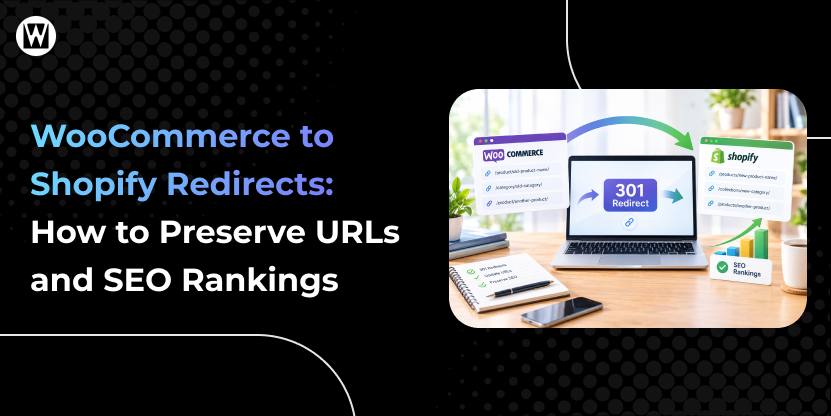



Moving from WooCommerce to Shopify can change your website’s URL structure, and that can affect more than just broken links. If important product, category, blog, or landing-page URLs are not mapped correctly, visitors may reach broken pages, and search engines may have difficulty connecting your old URLs with their new Shopify destinations.
Those URLs may already attract organic and referral traffic, earn backlinks, rank in search results, and contribute to conversions and sales.
A proper redirect strategy helps search engines process URL changes and directs visitors from old WooCommerce URLs to the most relevant Shopify pages.
This guide explains how to plan, create, test, and monitor WooCommerce to Shopify redirects, including which URLs to review, how to decide where they should go, how to build a redirect mapping, what to do with URLs that have no replacement, and what to check before and after launch.
A redirect tells visitors and search engines that an old URL has moved to another location.
For example:
/product/red-shoes/ → /products/red-shoes
When a URL has permanently moved, and a relevant Shopify destination exists, a permanent redirect, such as a 301 or 308, helps communicate that the old URL has moved. Google recommends permanent redirects for permanent URL changes and advises avoiding unnecessary redirect chains.
Don’t limit your redirect audit to product pages.
Review URLs that have search visibility, organic or referral traffic, backlinks, important internal links, or conversion value. Also identify old URLs that have relevant replacements on the new Shopify store, even if their recent traffic is low.
| URL Type | WooCommerce Example | Typical Shopify Destination |
| |
|---|---|---|---|---|
| Product | /product/red-shoes/ | /products/red-shoes |
| |
| Category | /product-category/shoes/ | /collections/shoes |
| |
| Blog post | /blog/how-to-choose-shoes/ | Relevant Shopify blog URL |
| |
| Static page | /about-us/ | /pages/about-us |
| |
| Landing page | /summer-sale/ | Relevant page or collection |
| |
| Custom URL | /special-offer/ | Relevant replacement |
| |
| Retired page | /old-product/ | No replacement |
|
Don’t rely only on your current navigation.
Important URLs can exist outside your main menus and may still receive traffic, backlinks, referrals, or customers.
Start by building a complete understanding of your existing WooCommerce website structure and identifying which URLs matter most for SEO and business performance. The goal is to ensure every important page has a clear and relevant destination in Shopify.
For the complete migration process, including data transfer, URL planning, testing, and launch, see our guide to how to migrate from WooCommerce to Shopify.
Gather all existing URLs from multiple sources such as your XML sitemap, website crawler, Google Search Console, analytics, backlinks, and internal navigation. This ensures no important pages are missed, including product pages, categories, blogs, landing pages, and any indexed URLs.
Not all URLs need equal attention. Prioritize pages based on organic traffic, rankings, backlinks, conversions, internal linking importance, and business value. Prioritize relevant Shopify destinations for these URLs. If a page has no meaningful replacement, return an appropriate 404 or 410 response rather than redirecting it to an unrelated page.
Match each important WooCommerce URL to the most relevant Shopify page. Use this logic:
Avoid redirecting to irrelevant pages such as the homepage unless absolutely necessary.
Create a structured redirect plan before launch. Use permanent redirects, typically 301 redirects, for URLs that have permanently moved. Where supported and appropriate, 308 redirects can also be used. Direct each old URL to its final destination to avoid unnecessary redirect chains and loops.
Once your URL mapping is ready, implement the redirects using Shopify’s URL redirect functionality or an appropriate bulk-import method for larger URL lists.
Before importing or creating redirects:
For large stores, validate the full redirect mapping rather than relying only on a small sample. Keep a record of the source URL, destination URL, implementation status, and test result so issues can be identified and corrected efficiently.
Before and after launch, test high-priority URLs first, including top traffic pages and pages with backlinks. Verify that redirects go to the correct destination, return proper status codes, and do not create chains or broken paths.
After the migration, continue monitoring redirects, crawl errors, and indexed pages in Google Search Console. Fix broken or misdirected URLs promptly to help users and search engines reach the correct Shopify destinations.
Sending every old URL to the homepage is not a substitute for proper URL mapping.
If an old product, category, blog post, or landing page has a relevant replacement, redirect it there.
Google advises against redirecting large numbers of unrelated URLs to one destination such as the homepage because users may be confused and those URLs can be treated as soft 404s.
Better approach: Map each important old URL to the most relevant Shopify destination.
Products may receive significant traffic, but categories, blogs, landing pages, and static pages can also have rankings, backlinks, referral traffic, and conversions.
Better approach: Review the entire URL inventory, not just product URLs.
A redirect chain looks like:
Old URL → URL B → URL C
If URL C is the final destination, use:
Old URL → URL C
Google recommends redirecting directly to the final destination where possible.
For a permanent URL migration, use an appropriate permanent redirect such as 301 or 308 rather than treating the move as temporary.
Blog posts, guides, and landing pages may attract organic traffic, backlinks, and referral visits. Include these URLs in your redirect inventory alongside product, category, and static pages.
Better approach: Map each important content URL to its most relevant Shopify destination.
A redirect can send users to the correct page, but internal links should still point directly to the new Shopify URLs.
Better approach: Update internal links after the new URL structure is finalized.
Testing one or two URLs doesn’t prove that a large redirect mapping is correct.
Better approach: Test high-value URLs plus a representative sample of the remaining redirect set.
If incorrect redirects have already caused traffic, indexing, or other migration problems, see our guide to recovering a failed WooCommerce to Shopify migration.
Redirects are only one part of an SEO migration.
Your Shopify pages should use the correct canonical URLs, and your XML sitemap should contain the new URLs you want search engines to discover and index.
Google’s site-migration guidance also recommends checking canonical annotations, robots directives, redirects, crawl issues, and updated sitemaps during a migration.
Need Help Managing Redirects During Your WooCommerce to Shopify Migration?
A successful migration involves more than moving products and setting up a new Shopify theme.
Your URLs, content, internal links, metadata, and technical SEO signals all need to be checked as part of the migration.
A successful WooCommerce to Shopify migration starts with a clear redirect strategy. Identify the URLs that matter, map each one to the most relevant Shopify destination, and avoid shortcuts such as sending unrelated pages to the homepage. Accurate redirects help preserve the connection between your old URLs and their new destinations while providing a better experience for visitors and search engines.
Redirect management should continue after launch. Test important URLs, update internal links, monitor Google Search Console, and fix crawl or redirect issues as they appear. If you need help managing the technical side of your migration, WooCommerce to Shopify migration services can support URL mapping, redirects, SEO checks, and post-migration validation.
No. Only redirect URLs that have SEO value or a relevant replacement. If a page has no meaningful equivalent, it is better to allow a 404 or 410 rather than forcing an irrelevant redirect.
Generally no. Homepage redirects reduce relevance and can create poor user experience. Always redirect to the most relevant matching page instead.
Common causes include:
Check the source URL, confirm that the destination works, review any conflicting rules, and test the redirect again.
I'm Ravi Makhija, Founder & CEO of WebyKing. I believe your website should be the hardest-working member of your team, building trust, generating leads, and creating opportunities 24/7. Through web design, development, SEO, and digital strategy, I help businesses build websites that become growth assets-not just digital brochures. Too many businesses invest in websites that look great but fail to deliver real business value.
Business owners deserve digital solutions that are simple, practical, and built around their goals, not unnecessary complexity. After all, your website shouldn't just represent your business; it should help grow it.

Let’s turn your ideas into impact—reach outYears of Experience and let’s build something exceptional together.
Customer
Retention Ratio
Certified Professionals
Projects
Years of Experience







TRUSTED BY 100+ CLIENTS, WITH OVER 100 PROJECTS SUCCESSFULLY DELIVERED AS A FULL-SERVICE WEB AGENCY
TRUSTED BY 100+ CLIENTS, WITH OVER 100 PROJECTS SUCCESSFULLY DELIVERED AS A FULL-SERVICE WEB AGENCY
TRUSTED BY 100+ CLIENTS, WITH OVER 100 PROJECTS SUCCESSFULLY DELIVERED AS A FULL-SERVICE WEB AGENCY
We don’t just build websites; we craft digital experiences that drive results. Contact us today, and let’s turn your online presence into a powerful marketing tool that grows your business.
Web Design By Industry
Digital Marketing
eCommerce Web Design
SEO Services
Lead Gen By Industry
Migration By Platform
PPC By Industry
Maintenance By Platform
Our Presence
Expand your business digitally on a global scale! We’re always ready at your service, with dedicated teams in three key international locations.

5354 Denny Ave, North Hollywood, Los Angeles, CA 91601, United States.
9720 Jones Rd, S210, Houston, TX 77065, United States.

The Spire, Office No: 312, Near Ayodhya Chowk BRTS Bus Stop, 150 Feet Ring Road, Rajkot
Share your details below and we’ll get back to you soon.
We’ll get back to you shortly.