Last Updated: October 2, 2026
Reading Time: 13 minutes
Post Views: 4
- Quick Answer: What Are the Main WooCommerce to Shopify Migration Tools?
- Top WooCommerce to Shopify Migration Tools
- WooCommerce to Shopify Migration Tools Compared
- What Can a WooCommerce to Shopify Migration Tool Actually Move?
- Data Migration vs. Functionality Migration
- What Will You Still Need to Do Manually?
- Can You Test a Migration Before Doing the Full Migration?
- How Much Does a WooCommerce to Shopify Migration Tool Cost?
- Do You Need a Migration Tool at All?
- Before choosing a migration tool, document:
- How to Choose the Right WooCommerce to Shopify Migration Tool
- Which Tool Fits Which Store Situation?
- What Happens to WooCommerce Plugins?
- What Happens to SEO During the Migration?
- What Should You Test Before Launch?
- Common Mistakes When Using WooCommerce to Shopify Migration Tools
- Frequently Asked Questions
Moving from WooCommerce to Shopify is not simply a matter of exporting products and importing them into a new platform. The migration method you choose determines what data can be transferred automatically, how much mapping and testing you’ll need, and how much work remains after the import.
The right WooCommerce to Shopify migration tool can automate much of the data transfer, but tools differ in what they migrate, how much control they provide, how they handle custom data, and what you still need to configure manually.
This guide compares the main migration options and explains what each approach can handle, where the limitations are, what migration tasks remain manual, and how to choose the right option for your store.
Quick Answer: What Are the Main WooCommerce to Shopify Migration Tools?
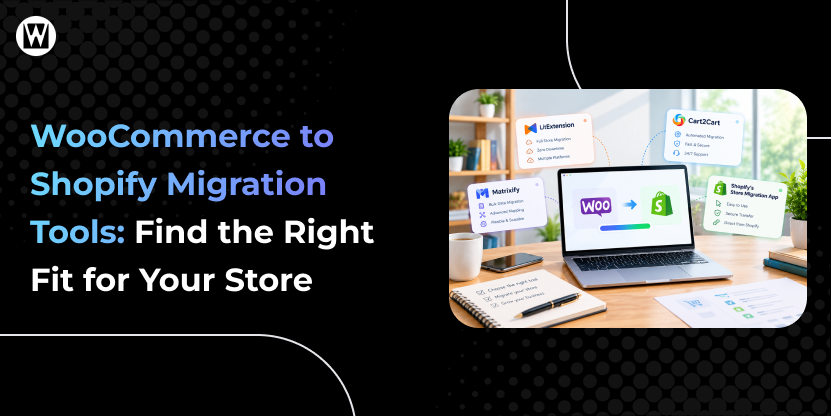
The main options are Shopify’s Store Migration app, automated services such as LitExtension and Cart2Cart, data-management tools such as Matrixify, other Shopify App Store migration apps, and manual/CSV or professional migration approaches.
Shopify’s Store Migration app is currently in early access and focuses on importing WooCommerce products. LitExtension and Cart2Cart provide more automated migration workflows for broader store data, while Matrixify gives more control over data conversion and bulk management. For highly customized stores, professional or custom migration work may be more appropriate.
Top WooCommerce to Shopify Migration Tools
1. LitExtension
LitExtension is an automated migration service designed to transfer store data from WooCommerce and other platforms to Shopify.
It offers a free demo migration so you can preview transferred data before committing to a full migration. Its automated option uses a guided migration process, while its All-in-One service provides expert-managed migration and testing.
Commonly supported migration data includes:
- Products
- Categories
- Customers
- Orders
- Reviews
- Coupons
- Images
- SEO URLs and related data
Useful when:
You want an automated migration process without manually mapping every record yourself, particularly when you want the option of expert assistance.
Check before migrating:
Confirm that the specific WooCommerce plugins, custom fields, product structures, reviews, and other data used by your store are supported.
2. Cart2Cart
Cart2Cart provides an automated migration process for moving store data from WooCommerce and other platforms to Shopify.
Its current Shopify App Store listing supports products, customers, orders, categories, images, SEO data, URLs, reviews, and other migration data. Availability and behavior can depend on the source data, migration configuration, and selected options. It also offers migration testing and options for keeping data updated during the transition.
Commonly supported migration data includes:
- Products and variants
- Customers
- Orders
- Categories
- Images
- Reviews
- Discounts
- Inventory
- SEO data and URLs
- Metafields
Cart2Cart is free to install on Shopify, while additional migration charges depend on factors such as store size, entities migrated, and selected options.
Useful when:
You want an automated migration workflow with testing and support for a broad range of store data.
Check before migrating:
Review exactly how your custom fields, plugins, reviews, order history, and SEO data will map to Shopify.
3. Matrixify
Matrixify is designed for bulk importing, exporting, updating, and migrating Shopify store data.
For WooCommerce migrations, Matrixify can connect directly to the WooCommerce or WordPress API and migrate products, collections/categories, customers, orders, coupons, blog posts, pages, and redirects. It can also work with custom data through Shopify metafields.
One useful feature is its Dry Run, which lets you convert and review data before performing the actual import. However, a dry run should be treated as a preparation and review step, not as a replacement for testing the completed Shopify store.
Useful when:
You need more control over data, filtering, mapping, or bulk editing during the migration.
Check before migrating:
Matrixify’s own WooCommerce documentation notes that themes, WordPress plugins, payment and shipping settings, and product reviews are not migrated through its WooCommerce migration process and need separate handling.
4. Shopify's Store Migration App
Shopify also provides a first-party Store Migration app for WooCommerce migrations.
However, it is currently listed as being in early access, available only to certain stores and on desktop devices. Shopify’s current documentation says the app imports WooCommerce products through a CSV file. It also notes that products with more than three options require another solution because Shopify currently limits product options to three.
Useful when:
You have a relatively straightforward product catalog and want to use Shopify’s own migration workflow.
Check before migrating:
Do not assume that importing products is the same as migrating your entire WooCommerce store. Customers, orders, content, reviews, redirects, plugins, integrations, and other data may require different methods or additional tools.
WooCommerce to Shopify Migration Tools Compared
| Tool | Best suited for | Main data scope | Automation | Control | Testing | Key limitation |
|---|---|---|---|---|---|---|
| Shopify Store Migration app | Straightforward product migration | WooCommerce products via CSV | High for supported product imports | Lower | Import report | Early access and currently focused on product import |
| LitExtension | Automated store migration | Products, customers, orders, categories, images, reviews, SEO-related data, and other supported entities | High | Moderate | Free demo migration | Custom data and plugin-specific requirements need verification |
| Cart2Cart | Broad automated migration | Products, variants, customers, orders, categories, images, reviews, discounts, inventory, SEO data, URLs, metafields, and other supported entities | High | Moderate | Migration testing | Exact capabilities and costs depend on migration scope and configuration |
| Matrixify | Detailed data migration and bulk data control | Products, collections/categories, customers, orders, discounts, pages, blog posts, redirects, and supported custom data | High, with configuration | High | Dry Run | More technical; themes, plugins, payment/shipping settings, and product reviews require separate handling |
| Other Shopify migration apps | Specific migration requirements | Varies by app | Varies | Varies | Varies | Check the exact entities, mapping, testing, and limitations |
The goal of this table is not to identify one universal winner. It is to show why the same migration tool may work well for one store and poorly for another.
A migration tool may transfer the underlying data without recreating the functionality that depended on the old WooCommerce environment.
What Can a WooCommerce to Shopify Migration Tool Actually Move?
This is one of the most important questions to answer before choosing a tool.
A migration tool may transfer a large amount of store data, but data migration is not the same as migrating the entire store experience.
Depending on the migration method and tool, supported data may include:
- Products
- Product variants
- Product images
- Categories or collections
- Customers
- Orders
- Coupons or discounts
- Inventory
- Pages
- Blog posts
- Reviews
- SEO URLs
- Redirects
- Custom fields or metafields
But support varies between tools and between individual WooCommerce stores.
For example, Matrixify documents support for products, categories, customers, orders, coupons, blog posts, pages, redirects, and custom data, while its WooCommerce documentation specifically excludes themes, plugins, payment and shipping settings, and product reviews from its migration process.
Cart2Cart’s current Shopify listing includes products, customers, orders, categories, images, reviews, SEO data, and other entities among its supported migration capabilities.
Always compare the tool against your actual WooCommerce store, not just its headline feature list.
Data Migration vs. Functionality Migration
This distinction is easy to overlook.
Data migration
Data migration means transferring information such as:
- Products
- Customers
- Orders
- Categories
- Images
- Pages
- Blog posts
- Discounts
- Reviews
- SEO-related data
Functionality migration
Functionality migration means recreating how your store actually works.
That can include:
- Payment gateways
- Shipping rules
- Tax configuration
- Product filters
- Subscription systems
- Membership functionality
- Product customization
- Wholesale functionality
- Booking systems
- CRM integrations
- Email marketing integrations
- Analytics and tracking
- Custom WooCommerce plugins
- Custom checkout behavior
A migration tool may transfer the underlying data without recreating the functionality that depended on the old WooCommerce environment.
This is one of the biggest reasons a migration can appear successful in a data report while still requiring significant work before launch.
What Will You Still Need to Do Manually?
Even with an automated migration tool, expect some manual configuration and validation.
Common tasks include:
1. Rebuild the Shopify theme
Your WooCommerce theme does not simply become a Shopify theme.
You may need to recreate:
- Navigation
- Page layouts
- Product templates
- Collection layouts
- Header and footer
- Cart experience
- Checkout-related elements
- Brand styling
- Custom sections
2. Replace WooCommerce plugins
WooCommerce plugins do not automatically become Shopify apps.
For each important plugin, determine whether you need:
- A Shopify app
- Custom Shopify development
- A different workflow
- A simpler replacement
- No replacement
3. Reconfigure payments and shipping
Payment gateways, shipping rules, taxes, fulfillment settings, and other operational configurations need to be reviewed in Shopify.
4. Review customer accounts
Customer data can usually be transferred, but customer authentication may require additional steps. For example, Customer account credentials require separate handling. Shopify does not allow customer passwords to be migrated through customer CSV imports. Depending on the customer account setup used by the new Shopify store, customers may need to activate their accounts or use Shopify’s passwordless sign-in flow.
5. Validate SEO
You should manually verify:
- URL mappings
- 301 redirects
- Page titles
- Meta descriptions
- Canonicals
- Indexability
- XML sitemap
- Internal links
- Structured data
- Important landing pages
6. Test the complete shopping journey
Test the store as a customer would use it:
Landing page → product → cart → checkout → payment → confirmation → email
Also test account creation, login, search, filtering, coupons, shipping, mobile layouts, forms, analytics, and important integrations.
Can You Test a Migration Before Doing the Full Migration?
Yes, but the type of test depends on the tool.
LitExtension offers a free demo migration that allows you to preview transferred data before the full migration.
Cart2Cart’s Shopify listing also states that you can test the migration before going live.
Matrixify provides a Dry Run that converts WooCommerce data into its import structure so you can review the result before performing the actual import.
A test migration should answer questions such as:
- Did the expected products transfer?
- Are variants structured correctly?
- Are images connected to the right products?
- Are customers and orders mapped correctly?
- Are categories converted appropriately?
- Are URLs and redirects correct?
- Did custom fields transfer as expected?
- Are unsupported records identified?
- What still needs manual work?
Do not treat a successful demo or dry run as proof that the entire Shopify store is ready to launch. The destination store still needs functional, SEO, UX, and checkout testing.
How Much Does a WooCommerce to Shopify Migration Tool Cost?
There is no single price for WooCommerce to Shopify migration tools.
The cost can depend on:
- Number of products
- Number of customers
- Number of orders
- Number of other entities
- Migration options
- Data volume
- Additional services
- Expert assistance
- Custom data requirements
Some tools offer free installation or demonstrations, while the actual migration cost varies according to the scope.
For example, Cart2Cart’s current Shopify listing is free to install but states that additional charges depend on store size, migrated entities, and selected options.
LitExtension provides automated and expert-managed migration options, with pricing dependent on the migration plan and scope.
The important question is not simply “What is the cheapest tool?”
It is:
“What will this tool migrate, what will I need to fix manually, and what will the complete migration cost me after accounting for that work?”
A lower tool price does not necessarily mean a lower total migration cost if your team has to spend significant time fixing mappings, rebuilding functionality, or correcting migration errors.
Do You Need a Migration Tool at All?
Not necessarily.
Shopify currently supports several migration approaches, including CSV imports, third-party migration apps, Shopify’s Store Migration app where available, hiring a Shopify Partner, and custom API-based migration solutions.
Manual or CSV migration can make sense when:
- Your catalog is relatively small
- Your data structure is simple
- You have limited historical order data
- You are comfortable working with spreadsheets
- Your store has few customizations
- You can manually configure the Shopify store
A migration tool can make sense when:
- You have a larger product catalog
- You need to migrate customers and orders
- You want to reduce manual data entry
- You need repeated or incremental data transfers
- You want automated mapping
- You need to test the migration before launch
Professional migration support can make more sense when:
- Your store has extensive customizations
- You rely on many WooCommerce plugins
- You have complex product structures
- You have large amounts of historical data
- Your store has important SEO traffic
- You have complex integrations
- Your business cannot afford prolonged disruption
- You need someone to manage the migration from planning through launch
The right approach depends on the complexity and business risk of the migration, not simply the number of products.
Before choosing a migration tool, document:
- Number of products
- Number of variants
- Customers
- Orders
- Categories
- Reviews
- Coupons
- Pages
- Blog posts
- Custom fields
- Plugins
- Integrations
- Subscription/membership data
- SEO URLs
- Redirect requirements
- Multiple languages/currencies
- Multiple stores/domains
- Inventory locations
- Required final-sync process
How to Choose the Right WooCommerce to Shopify Migration Tool
Before selecting a tool, compare it against these criteria.
1. What data does it support?
Create a list of everything you need to move:
Products → Customers → Orders → Categories → Images → Reviews → Pages → Blogs → Discounts → SEO data → Custom fields
Then check each item against the tool’s documented capabilities.
2. Can it handle your WooCommerce customizations?
List your important:
- Plugins
- Custom fields
- Product types
- Checkout functionality
- Payment systems
- Shipping rules
- Integrations
- Subscription or membership features
Then determine what will be migrated, what will need a Shopify replacement, and what will need custom development.
3. Can you test before the final migration?
A demo, test migration, or dry run can help you identify mapping problems before they affect the production store.
4. Does It Support Incremental or Final Sync?
A migration can take days or weeks to prepare. During that time, your WooCommerce store may continue receiving new orders, customers, products, or other changes.
Check whether the migration tool can perform an incremental or final migration after the initial transfer. This can help bring over records that were created or changed while you were preparing the Shopify store.
Ask specifically:
- Can new orders be migrated after the initial migration?
- Can new or updated customers be transferred?
- Can products or inventory changes be synced?
- Can the migration be run again without creating unwanted duplicates?
- Can the tool identify records that were created or changed after the first migration?
- How does the tool handle the final data sync before launch?
This is particularly important for stores that need to keep WooCommerce live while the Shopify store is being built and tested.
5. How much control do you need?
If you want a largely automated workflow, an automated migration service may be easier.
If you need to inspect, filter, modify, or repeatedly manipulate large amounts of data, a tool with greater data-level control may be more appropriate.
6. How will SEO data be handled?
Check specifically for:
- URL migration
- 301 redirects
- Metadata
- Canonicals
- Image URLs
- Internal links
- Structured data
- Sitemap and indexing considerations
Do not assume that moving product data automatically preserves SEO.
7. What support is available?
Check whether the provider offers:
- Documentation
- Technical support
- Migration assistance
- Expert-managed services
- Post-migration support
Support becomes particularly important when your store contains custom data or functionality.
Which Tool Fits Which Store Situation?
Instead of choosing a tool based only on popularity, start with your store’s requirements
| Your Situation | Approach to Consider |
|---|---|
| Small, simple catalog | Shopify’s available import options or manual/CSV migration |
| Large catalog + standard data | Automated migration tool |
| Complex custom data | Technical evaluation before selecting a tool |
| Need a guided automated process | LitExtension or Cart2Cart |
| Need detailed data control | Matrixify |
| Complex custom data or integrations | Professional migration support or custom migration work |
| Large store with important SEO traffic | Tool plus detailed testing and SEO validation |
| Heavy WooCommerce plugin dependency | Professional assessment before selecting the migration method |
This is a starting framework, not a substitute for checking the exact data and functionality in your store.
What Happens to WooCommerce Plugins?
This is one of the most important limitations to understand before migration.
A WooCommerce plugin may provide functionality that does not exist natively in Shopify.
For example, your store may depend on plugins for:
- Product customization
- Subscriptions
- Wholesale pricing
- Memberships
- Advanced shipping
- Product filters
- Reviews
- Bookings
- Custom checkout features
- Marketing automation
A migration tool generally transfers data, not the underlying WordPress/WooCommerce plugin itself.
You therefore need to identify the business function provided by each important plugin and determine how that function will be recreated in Shopify.
What Happens to SEO During the Migration?
A migration tool can transfer certain SEO-related data, but SEO preservation requires more than moving records.
Important migration tasks include:
- Mapping old WooCommerce URLs to the correct Shopify URLs
- Creating required 301 redirects
- Preserving important metadata
- Checking canonical URLs
- Updating internal links
- Reviewing indexability
- Checking XML sitemaps
- Validating structured data
- Monitoring Search Console after launch
The exact capabilities vary by migration tool.
For example, Cart2Cart currently lists SEO data and URLs among its migration capabilities, while Matrixify documents redirect generation as part of its WooCommerce migration workflow.
The important point is that SEO migration should be validated independently rather than assumed to be complete because the data import succeeded.
What Should You Test Before Launch?
Before switching from WooCommerce to Shopify, test the destination store from both the admin and customer perspectives.
Data
- Product count
- Variant count
- Categories/collections
- Customer records
- Orders
- Images
- Discounts
- Reviews
- Pages and blog content
Store functionality
- Product search
- Filters
- Cart
- Checkout
- Payments
- Shipping
- Taxes
- Coupons
- Customer accounts
- Order emails
- Contact forms
- Third-party integrations
SEO
- URLs
- 301 redirects
- Metadata
- Canonicals
- Internal links
- Robots directives
- Sitemap
- Structured data
- Indexability
User experience
- Desktop
- Mobile
- Navigation
- Product pages
- Collection pages
- Cart
- Checkout
- Forms
- Account area
Tracking
- Google Analytics
- Google Tag Manager
- Search Console
- Conversion tracking
- Advertising pixels
- Ecommerce events
Only after these checks should you move toward the final launch.
Common Mistakes When Using WooCommerce to Shopify Migration Tools
Choosing a tool before auditing the store
A DIY migration can work for a small, simple WooCommerce store with limited products, few integrations, and little dependence on organic traffic.
A professional migration is generally more appropriate when your store has high organic traffic, a large catalog, custom functionality, multiple integrations, or revenue-critical operations.
Assuming “automated” means “everything is migrated”
Automation reduces manual data transfer, but it does not recreate every theme, plugin, integration, or business rule.
Skipping a test migration
A test can reveal mapping and data issues before the final migration.
Ignoring URL changes
Changing from WooCommerce to Shopify often changes URL structures. Redirects need to be mapped and tested.
Migrating data but not functionality
A product catalog can look correct while checkout, shipping, subscriptions, reviews, or integrations are still incomplete.
Launching without a final data sync
If your WooCommerce store continues receiving orders or customers while the Shopify store is being prepared, you need a plan for handling data created or changed after the initial migration.
Treating the migration as finished immediately after launch
Post-launch validation is essential. Check the store, redirects, analytics, indexing, orders, customer accounts, and important integrations after the new store goes live.
When Is a Migration Tool Not Enough?
A migration tool may not be sufficient when your store has complex requirements that cannot be mapped cleanly between WooCommerce and Shopify.
Consider professional migration support when you have:
- Complex custom WooCommerce development
- Many dependent plugins
- Custom product structures
- Large historical order or customer datasets
- Complex integrations
- Subscription or membership systems
- Significant organic search traffic
- Multiple domains or regional stores
- Custom APIs
- Complicated URL structures
- Strict launch deadlines
In these situations, the project is not simply a data-transfer task. It becomes a broader replatforming project involving data, functionality, SEO, integrations, testing, and launch coordination.
Final Thoughts
The right WooCommerce-to-Shopify migration method depends less on the size of your product catalog than on the complexity of your data, functionality, integrations, and SEO requirements.
Start by auditing what your WooCommerce store actually contains. Then compare tools based on supported data, mapping control, testing, incremental migration, SEO handling, and the amount of manual work remaining after the transfer.
A simple store may be able to use Shopify’s native tools or an automated migration app. A complex store may need a combination of migration software, custom development, SEO work, testing, and professional support.
If your store has custom WooCommerce functionality, complex integrations, significant SEO traffic, or a large historical dataset, the migration becomes more than a data-transfer project. That’s where managed migration support can reduce the amount of technical coordination required from your team. WebyKing provides WooCommerce-to-Shopify migration services covering data migration, SEO preservation, testing, and launch support.
Frequently Asked Questions
Can I test a WooCommerce to Shopify migration before doing the full migration?
Yes. Several migration tools provide a way to test or preview the migration before the final transfer. LitExtension offers a free demo migration, Cart2Cart provides migration testing, and Matrixify provides a Dry Run for reviewing converted data before import.
What will I still need to do manually after using a migration tool?
You may still need to rebuild the Shopify theme, replace WooCommerce plugins, configure payments and shipping, adjust custom functionality, review customer account activation, validate redirects and SEO, configure integrations, and test the complete shopping experience.
How much does a WooCommerce to Shopify migration tool cost?
Pricing varies by tool and migration scope. Factors can include the number of products, customers, orders, entities, selected options, and whether you want expert assistance. Some tools offer free installation or demos, while the full migration may incur additional charges.
Do I need a migration tool at all?
No. For a small and simple store, manual or CSV migration may be practical. For larger stores or stores with significant customer, order, product, or custom data, an automated migration tool can reduce manual work. Complex stores may require professional migration support.
Can a migration tool transfer products, customers, and orders?
Many migration tools support these core entities, but capabilities vary. Shopify’s own migration documentation lists third-party migration apps as an option for transferring store data, while tools such as Cart2Cart and Matrixify document support for products, customers, and orders.
Will a migration tool preserve my SEO and URLs?
Some tools support SEO data, URLs, or redirects, but SEO preservation still requires validation. You should review URL mappings, redirects, metadata, canonicals, internal links, indexability, and other technical SEO elements before and after launch.
What happens to my WooCommerce plugins?
The plugins themselves do not simply transfer to Shopify. You need to identify what each plugin does and determine whether the functionality can be replaced with a Shopify app, native Shopify feature, custom development, or a different workflow.
Can I migrate reviews, pages, and blog content?
Possibly, depending on the tool. Support differs significantly between migration solutions. For example, Matrixify documents migration of pages and blog posts but specifically notes that product reviews are not migrated through its WooCommerce migration process. Other tools list review migration among their supported data.
Should I use a migration tool or hire a professional migration service?
A migration tool may be sufficient for a straightforward store with standard data and limited customization. Professional support becomes more relevant when the store has complex plugins, custom functionality, large datasets, important SEO traffic, or integrations that need careful planning and testing.
I'm Ravi Makhija, Founder & CEO of WebyKing. I believe your website should be the hardest-working member of your team, building trust, generating leads, and creating opportunities 24/7. Through web design, development, SEO, and digital strategy, I help businesses build websites that become growth assets-not just digital brochures. Too many businesses invest in websites that look great but fail to deliver real business value.
Business owners deserve digital solutions that are simple, practical, and built around their goals, not unnecessary complexity. After all, your website shouldn't just represent your business; it should help grow it.


Get In Touch