
Last Updated: August 22, 2026
Reading Time: 17 minutes
Post Views: 134
Table of Contents
- Can You Migrate from Wix to Shopify Without Downtime?
- What Actually Migrates from Wix to Shopify
- Wix vs Shopify: Key Differences That Impact Migration
- Why Wix Store Owners Are Making This Move
- How to Choose Your Wix-to-Shopify Migration Method?
- Should You Migrate from Wix to Shopify?
- Is the Wix to Shopify Migration Hard?
- Step-by-Step Wix to Shopify Migration Process
- SEO Impact: Will You Lose Google Rankings?
- Wix to Shopify Migration Using Third-Party Apps
- Cost Breakdown
- Post-Migration Checklist
- Estimated Migration Timeline
- Common Wix to Shopify Migration Mistakes to Avoid
- Final Thoughts
- Frequently Asked Questions
If you’re planning to migrate from Wix to Shopify, the good news is your store does not need to go offline during the process. You can build and test your Shopify store in the background, migrate your data, set up redirects, and only switch your domain when everything is ready.
This Wix to Shopify migration guide walks you through the complete migration process: what data moves, what doesn’t, the exact Wix to Shopify migration steps, SEO protection, and a post-migration checklist.
Can You Migrate from Wix to Shopify Without Downtime?
Yes, your Wix store stays live during the entire migration. You build your Shopify store in the background, import data, recreate the design, and set up redirects before switching the domain. The final domain switch typically takes only a few minutes, meaning customers experience little to no disruption.
Quick Steps to Migrate from Wix to Shopify
- Back up your Wix store
- Set up a Shopify store
- Export products and customers
- Import data into Shopify
- Rebuild design and navigation
- Install equivalent apps
- Set up 301 redirects
- Test checkout and functionality
- Connect the domain
- Monitor SEO after launch
What Actually Migrates from Wix to Shopify
When you migrate from Wix to Shopify, you’re not just copying files from one folder to another. Wix and Shopify are entirely different platforms with distinct architectures, URL structures, and data formats. Understanding what transfers cleanly, what needs manual handling, and what cannot transfer at all prevents the surprises that catch most people off guard.
What Can Be Migrated
| Data Type | Migrates? | Notes |
|---|---|---|
| Products (titles, descriptions, images, pricing, SKUs) | Yes | Via CSV or migration app |
| Product variants (size, color, etc.) | Yes | Shopify supports a maximum of 3 options, 2,000 variants per product |
| Product categories → Shopify collections | Yes | Needs remapping to the Shopify collection structure |
| Inventory levels | Yes | Verify post-import |
| Customer records (name, email, address) | Yes | Passwords do NOT transfer |
| Order history | Partial | Requires migration app or third-party tool; not via CSV |
| Coupons and discount codes | Partial | Requires migration app; may need reconfiguration |
| Blog post content (text, images) | Manual only | Wix has no blog export; must be manually copied |
| SEO metadata (meta titles, descriptions) | Partial | Requires migration app; verify each post-import |
| SEO URLs / 301 redirects | Yes | Must be manually mapped and configured |
| Product reviews | Partial | Requires migration app + Shopify review app |
Wix to Shopify Migration Summary
Products: Yes
Customers: Yes
Orders: Partial
Blog posts: Manual
Design: No
Apps: No
SEO URLs: Must redirect manually
What Cannot Be Migrated Automatically
| Data Type | What To Do Instead |
|---|---|
| Customer passwords | Cannot transfer due to security restrictions. Send account activation emails post-launch |
| Wix theme/site design | Must choose a new Shopify theme and rebuild storefront |
| Wix apps and custom functionality | Find equivalent Shopify apps |
| Blog posts and pages | Must be manually copied and pasted into Shopify’s editor |
| Digital products | Wix does not support exporting digital products; must re-upload manually |
| URL structures | All URLs change; every page needs a 301 redirect |
| Payment gateway configurations | Must be reconfigured from scratch in Shopify |
| Wix-specific custom fields | May need to be recreated as Shopify Metafields |
Wix vs Shopify: Key Differences That Impact Migration
| Feature | Wix | Shopify |
|---|---|---|
| Ease of Use | Beginner-friendly website builder | eCommerce-focused, slightly steeper learning curve |
| Product Variants | Limited flexibility | Scalable and robust variant handling |
| Apps & Integrations | ~800 apps | 10,000+ ecommerce apps |
| SEO Control | Basic SEO features | Advanced SEO control and customization |
| Multichannel Selling | Limited capabilities | Built-in integrations (Amazon, Instagram, etc.) |
| Checkout Customization | Limited customization options | Highly optimized and customizable checkout |
| Scalability | Best for small to medium stores | Designed for high-growth businesses |
Why Wix Store Owners Are Making This Move
You’ve already decided to migrate. This section isn’t here to convince you. But understanding the specific Wix limitations that drive this decision helps you plan your Shopify setup to actually solve them.
Variant limits
Wix caps products at 1,000 variants per product and 6 option types. Shopify raised its variant limit to 2,000 per product in 2025 and natively supports 3 option types (with Metafields or apps for more). For apparel, accessories, or any catalog with size/color/material combinations, this gap is real.
Payment availability
Wix Payments is only available in approximately 15 countries. Shopify Payments is available in 20+ countries, and Shopify supports 100+ payment gateways globally, including local payment methods through Shopify Markets.
App ecosystem
Wix has approximately 800 apps, many focused on general website building rather than ecommerce. Shopify has over 10,000 apps, the majority commerce-specific, covering everything from subscriptions and loyalty programs to ERP integrations and advanced wholesale pricing.
International selling
Wix’s currency converter changes the display currency; only transactions are still processed in one base currency. Shopify Markets handles local currencies, local tax calculations, and market-specific domains natively.
Multichannel selling
Shopify’s built-in sales channels connect your store to Amazon, Instagram, TikTok, Facebook, and Google Shopping from one dashboard. Wix’s multichannel capabilities are more limited and app-dependent.
How to Choose Your Wix-to-Shopify Migration Method?
Three migration methods exist. Choose based on your store size and how much time and risk you can accept.
| Method | Best For | Technical Level | Time | Cost |
|---|---|---|---|---|
| Shopify Store Migration App (first-party) | Small stores, product-only migration | Beginner | 1–2 hours | Free |
| Manual CSV | Small stores under 300 products, no order history needed | Beginner–Intermediate | Half day to 2 days | Free |
| Migration Apps (LitExtension, Cart2Cart) | Medium to large stores, full data transfer | Beginner | 1–5 days | $30–$300+ |
| Professional migration service | Large stores, complex data, SEO-critical sites | None required | 2–8 weeks | $500–$5,000+ |
Note: These costs can vary based on store size, data complexity, SEO requirements, and custom integrations. If you’re comparing different platforms, this eCommerce platform migration guide can help you understand the broader process.
Not sure which to choose? If your store has fewer than 300 products, no custom integrations, and you don’t urgently need historical order data in Shopify, the manual CSV upload or Shopify’s own migration app will handle it. Anything larger, or any store where data accuracy and SEO protection are non-negotiable, use a migration app or professional service.
Should You Migrate from Wix to Shopify?
You should consider migrating if:
- You hit the Wix product variant limits
- You need advanced ecommerce functionality
- You want multichannel selling
- You need better SEO flexibility
- You plan to scale your store
You may stay on Wix if:
- You sell only a few products
- Your store is simple
- You don’t need advanced ecommerce features
- You don’t plan to scale
Is the Wix to Shopify Migration Hard?
The difficulty of a Wix to Shopify migration depends mainly on your store size, data complexity, and SEO requirements. Small stores with limited products can usually migrate using CSV import or Shopify’s migration tools. Medium stores with apps, blog content, and order history require more planning and testing. Large stores with SEO traffic, custom functionality, or complex product structures often benefit from a structured migration process or professional assistance.
Wix to Shopify Migration Difficulty
| Store Size | Difficulty | Recommendation |
|---|---|---|
| Small (under 100 products) | Easy | Manual migration or the Shopify migration app |
| Medium (100–500 products) | Moderate | Use a reliable migration app |
| Large (500+ products) | Complex | Professional migration recommended |
Step-by-Step Wix to Shopify Migration Process
Follow these steps to migrate your Wix store to Shopify safely without losing data or SEO rankings.
Before You Start: Wix to Shopify Migration Checklist
If you’re planning a platform migration, you may also want to review our complete Website Migration Checklist covering pre-migration, migration, and post-launch steps.
Before beginning the migration, make sure you:
- Export all Wix store data
- Download digital products
- List all existing URLs
- Document installed Wix apps
- Note SEO metadata
- Take design screenshots
- Record shipping and tax settings
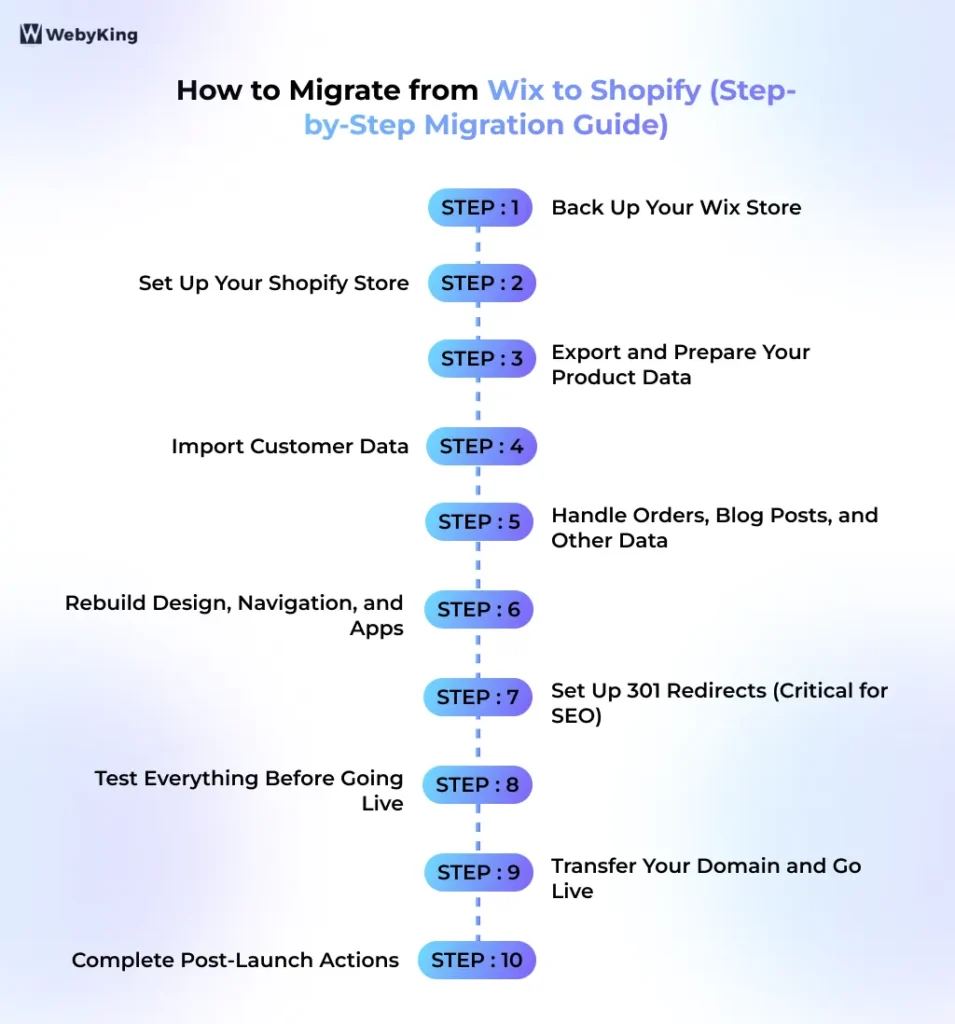
Step 1: Back Up Your Wix Store
Before doing anything, create a complete backup of your Wix store.
Back up your Wix site history
In your Wix Dashboard, go to Site Actions → Site History. Wix automatically saves versions when you publish; you can access and restore any previous version from here. Create a manual save point by publishing a minor change before starting.
Export your products
- In your Wix Dashboard, go to Catalog → Store Products → Products
- Click More Actions → Export
- Select All and click Export
- Name the file WixProductDownload.csv and save it
Export your orders
- Go to Sales → Orders
- Tick the Order checkbox to select all orders
- Click Export, this saves a CSV to your browser
Export your customer contacts
- Go to Customers & Leads → Contacts
- Click Import/Export → Export
- Download the CSV
Important digital products
Wix does not support exporting digital products. If your store sells digital downloads, you’ll need to re-upload each one manually in Shopify after migration.
Important blog posts
Wix has no blog export feature. Every blog post must be manually copied and pasted into Shopify’s blog editor. For stores with substantial blog content, budget time for this; it’s often the most time-consuming part of a Wix migration.
Store all exports in a folder along with screenshots of your current Shopify store settings (shipping rates, tax configurations, payment gateways). These serve as your reference during the rebuild.
Step 2: Set Up Your Shopify Store
Create your Shopify account
Go to Shopify.com and start your free trial. During signup, when asked “Which platform are you moving from?,” Select Wix; Shopify will configure certain defaults accordingly and prompt you to install the Store Migration App.
Do not install WordPress or any starter content. You’re importing an existing store.
Choose your Shopify plan
| Plan | Monthly Cost | Best For |
|---|---|---|
| Basic | $39 | Solo stores, simple operations |
| Shopify | $105 | Growing stores, need reports, multiple staff |
| Advanced | $399 | Scaling stores, advanced reports, and third-party calculated shipping |
| Shopify Plus | $2,300+ | High-volume, enterprise, B2B |
Most Wix stores migrating for growth land on the Basic or Shopify plan to start.
Choose a Shopify theme
Your Wix design does not transfer to Shopify. You have to select a new theme and rebuild your storefront’s visual identity.
Free theme options: Dawn (Shopify’s official base theme, fast, clean, well-maintained), Craft, Sense, and Refresh. Premium themes: $180–$400 one-time purchase from the Shopify Theme Store.
When choosing, test on mobile first; over 65% of ecommerce traffic comes from mobile devices. Consider how the theme handles your product type and catalog size.
Configure your basic store settings, currency, tax rules, and shipping zones now. These don’t migrate from Wix.
Step 3: Export and Prepare Your Product Data
You have two paths here: use Shopify’s native Store Migration App (simplest) or prepare a CSV manually (more control).
Option A: Shopify Store Migration App (Easiest)
Shopify’s first-party Store Migration App is currently in early access, available for qualifying stores on desktop. After creating your Shopify account and selecting Wix as your source platform, Shopify will prompt you to install it from your setup guide.
What it does: accepts your Wix product CSV as-is, without requiring you to reformat column headers. Shopify handles the mapping automatically.
What it doesn’t do: handles only products and customers, not orders, blog posts, or redirects.
To use it:
- Install the Store Migration App from your Shopify setup guide
- Upload your WixProductDownload.csv file
- Click Import, the app processes the file and reports what was imported and what had issues
- Review the import report and address any flagged items
Option B: Manual CSV Import
If the Store Migration App isn’t available to you or you want more control, manually reformat your Wix export to match Shopify’s CSV template.
Key column mappings from Wix to Shopify:
| Wix Column | Shopify Column |
|---|---|
| name | Title |
| description | Body (HTML) |
| price | Variant Price |
| discountedPrice | Variant Compare At Price |
| sku | Variant SKU |
| inventory | Variant Inventory Qty |
| weight | Variant Grams |
| productImageUrl | Image Src |
| collection | (map to Collections manually) |
| slug | Handle |
Critical Shopify CSV rules:
- The file must be UTF-8 encoded. If you’re working in Excel, save as “CSV UTF-8”, not standard CSV
- Shopify supports a maximum of 3 product options natively. If your Wix products have more than 3 option types, consolidate them or use the | separator in Option3. Additional attributes can be stored as Shopify Metafields
- Each product variant requires its own row in the CSV, all linked by a shared “Handle” value. This is different from Wix’s structure, where variants are nested
- Image URLs must be publicly accessible for Shopify to fetch them during import
Download Shopify’s sample product CSV template from your admin (Products → Import → Download sample CSV) and use it as your formatting reference.
To import: Shopify Admin → Products → Import → Add file → Deselect “Publish new products to all sales channels” → Upload and preview
Review the import preview before confirming the check variant structure, pricing, and image URLs.
Step 4: Import Customer Data
Format your Wix customer export to match Shopify’s customer CSV template.
Key field mapping:
| Wix Field | Shopify Field |
|---|---|
| firstName | First Name |
| lastName | Last Name |
| phone | Phone |
| address.addressLine | Default Address Address1 |
| address.city | Default Address City |
| address.subdivision | Default Address Province Code |
| address.country | Default Address Country Code |
| address.postalCode | Default Address Zip |
To import: Shopify Admin → Customers → Import → Add file → Import customers
Reminder: Customer passwords cannot be transferred. After launch, send all customers a Shopify account activation email so they can set new passwords and access their order history.
Step 5: Handle Orders, Blog Posts, and Other Data
Order history
Wix’s order export format does not map directly to Shopify’s import format; orders cannot be imported via native CSV. Options:
- Use LitExtension or Cart2Cart to migrate orders automatically
- Use EZ Importer (a Shopify app) to import historical order data from a formatted CSV
- Many stores choose to import only the last 12 months of orders, or start fresh on Shopify while keeping Wix accessible as an order history reference for 30–60 days post-launch
Blog posts and pages
There is no export path from Wix for blog content. Each post must be:
- Opened in Wix
- Copied into Shopify’s blog editor (Online Store → Blog Posts → Add blog post)
- Internal links updated from old Wix URLs to new Shopify URLs
- Images re-uploaded if they were hosted on Wix’s servers
- SEO metadata re-entered (meta title, meta description)
For stores with dozens of blog posts, budget one full day for this step. Preserving your H1/H2/H3 heading structure exactly carries SEO value.
Static pages (About, Contact, FAQ, Policy pages)
Same process, manually copy content into Shopify Admin → Online Store → Pages.
Step 6: Rebuild Design, Navigation, and Apps
Customize your theme
Using the Shopify Theme Editor (Online Store → Themes → Customize):
- Upload your logo and brand assets
- Configure color palette and typography to match your brand
- Build your homepage sections (hero banner, featured collections, testimonials)
- Set up your navigation menus in Shopify. These are under Online Store → Navigation
Rebuild your collections
Wix product categories need to be recreated as Shopify collections. Shopify offers two types:
- Manual collections: you add products individually
- Automated collections: products are added automatically based on conditions (tag, price, product type)
For most migrating stores, automated collections based on product tags are the fastest setup.
Find Shopify equivalents for your Wix apps:
| Wix App / Feature | Shopify Equivalent |
|---|---|
| Wix Reviews | Judge.me, Yotpo, Stamped.io |
| Wix Subscriptions | Recharge, Bold Subscriptions |
| Wix Loyalty Program | Smile.io, LoyaltyLion |
| Wix Abandoned Cart | Native in Shopify (no app needed) |
| Wix Chat | Tidio, Gorgias |
| Wix Email Marketing | Klaviyo, Mailchimp for Shopify |
| Wix Product Options | Infinite Product Options |
| Wix Bookings | Sesami, BookThatApp |
| Wix Events | Evey Events, Events Calendar |
| Wix Wishlist | Wishlist King, Wishlist Hero |
Install all app equivalents before launch, don’t leave this for post-launch.
Configure payments, shipping, and taxes: None of these migrate from Wix. Set up each from scratch:
- Payments: Settings → Payments
- Shipping: Settings → Shipping and Delivery
- Taxes: Settings → Taxes and Duties
Step 7: Set Up 301 Redirects (Critical for SEO)
This is the most SEO-critical step of the entire migration. Wix and Shopify use completely different URL structures; every URL on your site changes.
Wix vs Shopify URL structures
| Page Type | Wix URL Example | Shopify URL Example |
|---|---|---|
| Product | /product-page/product-name | /products/product-name |
| Category | /shop or /category-name | /collections/collection-name |
| Blog post | /blog/post-name | /blogs/news/post-name |
| About page | /about | /pages/about |
Every URL that changes every product, every category, every blog post, every page needs a 301redirect pointing from the old Wix URL to the new Shopify URL.
How to set up redirects in Shopify: Go to Online Store → Navigation → URL Redirects → Add URL Redirect
For stores with many pages, create a spreadsheet with old URLs in Column A and new Shopify URLs in Column B, then upload in bulk via CSV through the same URL Redirects section.
The rule: No redirect chains. Each old URL should redirect directly to its final new destination, not to another URL that then redirects again.
After implementing, test redirects by typing old Wix URLs into your browser and confirming they land on the correct new Shopify pages.
Step 8: Test Everything Before Going Live
Access your Shopify store through its temporary domain (yourstore.myshopify.com) while your domain still points to Wix. Test thoroughly:
Products and catalog
- Browse through product pages, verify descriptions, images, pricing, and variants
- Check that collections are correctly organized
- Confirm inventory levels are accurate
Checkout and payments
- Place a complete test order using Shopify’s payment test mode: Settings → Payments → Manage → Enable test mode
- Test with at least two different payment methods if you’re offering multiple
- Verify that shipping rates are calculated correctly for different zones
- Confirm tax calculations match your expected rates
- Test discount codes
Apps and integrations
- Confirm email marketing signups are syncing to your email platform
- Verify review apps are displaying correctly
- Test any loyalty program or subscription app functionality
- Check that chat apps are loading
SEO and technical
- Test all 301 redirects (a sample of products, categories, and blog posts)
- Go to Settings → Permalinks equivalent in Shopify, visit Settings → General, and confirm your URL structure is correct
- Run a speed test on key pages using Google PageSpeed Insights
- Test on mobile at a minimum iPhone and Android
Do not switch your domain until every test passes.
Step 9: Transfer Your Domain and Go Live
Option A: Connect your Wix domain to Shopify
If your domain is registered with a third-party registrar (not through Wix), connect it to Shopify:
- In Shopify: Settings → Domains → Connect existing domain
- Enter your domain name
- Log in to your domain registrar and update:
- A record to: 23.227.38.65
- CNAME record (www) to: shops.myshopify.com
- DNS propagation typically takes 2–24 hours
Option B: Transfer a Wix-registered domain
If you registered your domain through Wix:
- In your Wix Dashboard, go to Domains → Your domain → Advanced
- Unlock the domain and request an authorization (EPP) code
- In Shopify: Settings → Domains → Transfer in domain
- Enter your domain and the EPP code
- Domain transfers typically take 5–7 days to complete
Tip: Lower your domain’s TTL (Time to Live) to 300–600 seconds at least 24 hours before switching. This makes DNS propagation faster when you make the change.
Do not cancel Wix immediately. Keep your Wix account active for at least 30 days after going live on Shopify. You’ll almost certainly discover missing redirects or overlooked content during that window, having Wix accessible makes fixes faster.
Step 10: Complete Post-Launch Actions
Same day as launch
- Submit your Shopify XML sitemap to Google Search Console: https://yourdomain.com/sitemap.xml
- Verify all tracking pixels are firing: Google Analytics 4, Meta Pixel, Google Ads conversion tag (use Tag Inspector or browser extensions to verify each one individually)
- Send account activation emails to existing customers
- Announce the new store to your customer list via emai
SEO Impact: Will You Lose Google Rankings?
A hosting and platform change in itself doesn’t hurt rankings. What can hurt rankings and what’s completely preventable is URL changes without 301 redirects, metadata loss, or slow site performance post-launch. To avoid these issues, follow best practices for migrating a website without harming SEO.
What to expect
- A temporary 2–4 week fluctuation in rankings while Google recrawls the new site structure is normal
- With complete 301 redirect coverage and preserved metadata, most stores stabilize at or above pre-migration traffic levels within 4–8 weeks
- Stores that skip redirects can take months to recover, and backlinks to 404 pages represent a permanent ranking signal loss
The 5 most common SEO mistakes in Wix-to-Shopify migrations
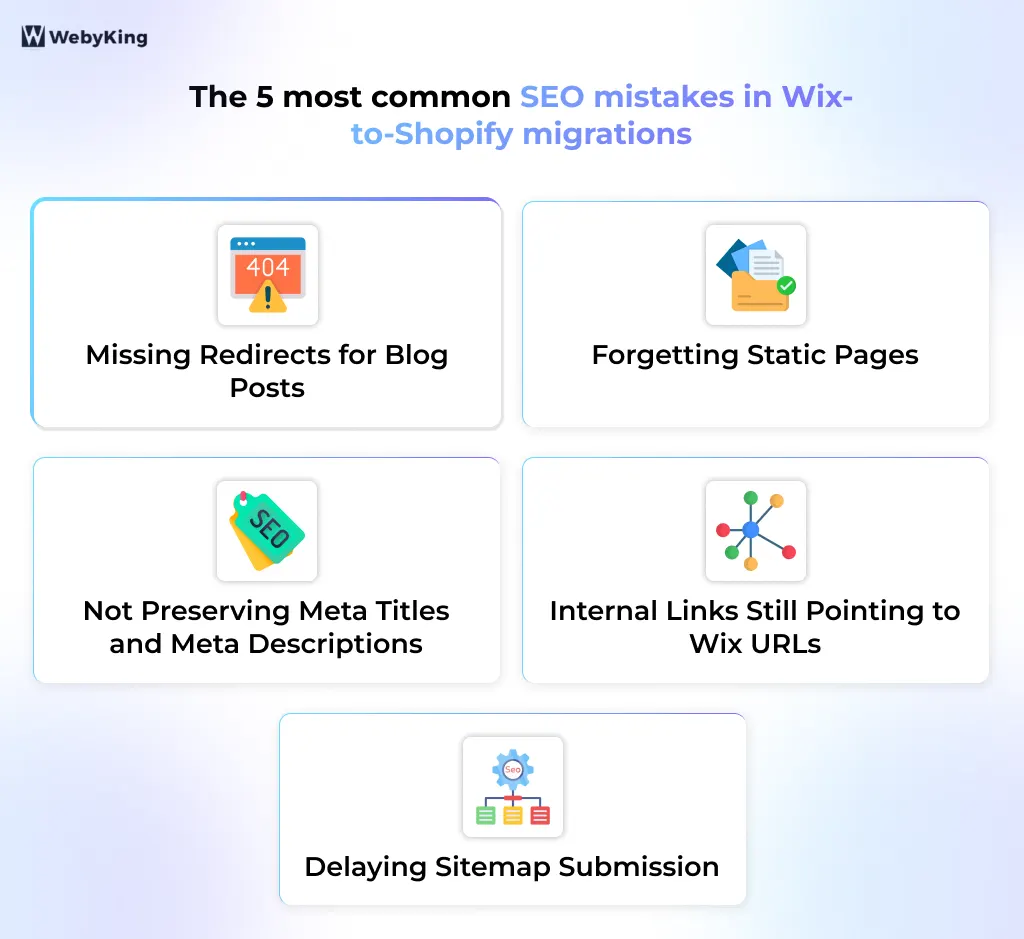
- Missing redirects for blog posts: Blog URL structure changes completely from Wix to Shopify. Every post URL needs a redirect, not just product pages.
- Forgetting static pages: About, Contact, FAQ, and policy pages all have new URLs in Shopify. All need redirects.
- Not preserving meta titles and meta descriptions: If you’re migrating blog content manually, re-enter SEO metadata for every post. Don’t leave it blank for Shopify to auto-generate.
- Internal links still pointing to Wix URLs: After rebuilding blog posts and pages in Shopify, update any internal links within content to point to the correct new Shopify URLs.
- Delaying sitemap submission: Submit your new sitemap to Google Search Console on the day you go live, not days later.
Wix to Shopify Migration Using Third-Party Apps
For stores that want to automate beyond what CSV import allows, particularly for orders, reviews, and blog content migration, apps handle the process without manual data reformatting.
LitExtension
Offers a free demo migration transferring up to 100 products, 100 customers, and 100 orders, useful for verifying how your specific data transfers before committing. Three-step automated process. 24/7 support during migration. Requires installing a connector file on your Wix store’s server.
Cart2Cart
Fully cloud-based, connect your Wix and Shopify store URLs, and it handles the data transfer automatically. Handles reviews with the free Shopify Product Reviews app installed. Free demo migration available. No file handling required.
Matrixify (Excelify)
More technical but most powerful. Connects via API and migrates data with the highest level of customization. Best for stores with complex product structures or custom field requirements. Includes a Dry Run mode that validates your entire import without creating data.
Universal rule for all apps: Disable Shopify staff order notifications before importing historical orders. Settings → Notifications → Staff Order Notifications → Off. Re-enable after import. Without this, bulk-importing years of orders floods your team’s inbox.
Cost Breakdown
Shopify platform costs
| Plan | Monthly (monthly billing) | Monthly (annual billing) |
|---|---|---|
| Basic | $39 | ~$29 |
| Shopify | $105 | ~$79 |
| Advanced | $399 | ~$299 |
Migration costs
| Method | Cost |
|---|---|
| Shopify Store Migration App | Free |
| Manual CSV | Free (your time) |
| LitExtension | $29–$149+ depending on entity count |
| Cart2Cart | $29–$299+ depending on store size |
| Professional migration service | $500–$5,000+ |
Ongoing app costs to budget for: Email marketing (Klaviyo): $20–$150+/month. Reviews app: $0–$30/month. Loyalty program: $49–$199/month. Shopify theme (one-time): $0–$400.
Wix cancellation: Don’t cancel your Wix plan until at least 30 days after your Shopify store is live and stable. Budget for the overlap period.
For a more detailed breakdown, check this guide on website migration costs.
Post-Migration Checklist
Don’t declare the migration complete until every item is verified.
Data verification
- Product count matches Wix — verify no products were dropped
- Sample of 20+ products checked for description accuracy, variant correctness, and image loading
- Customer records imported with correct field mapping
- Order history imported (if applicable) with correct statuses
- Collections and navigation structure correct
Technical verification:
- All 301 redirects implemented and tested for products, categories, blog posts, and pages
- No noindex tags on live site pages
- SSL certificate active (padlock visible in browser address bar)
- XML sitemap submitted to Google Search Console
- Google Analytics 4 tracking verified
- All advertising pixels verified individually (Meta Pixel, Google Ads, TikTok Pixel, etc.)
- Canonical tags pointing to correct URLs
Functionality testing:
- Test order placed through full checkout with payment processing
- Shipping rates are calculated correctly for all zones
- Tax calculations matching expected rates
- Discount codes working
- Contact forms submitting and reaching the correct destination
- All app integrations confirmed functional
- Email marketing signup forms syncing to the email platform
- Mobile checkout tested on real devices
Customer communication:
- Account activation emails sent to existing customers
- Announcement sent to the customer list about the new store
30-day post-launch monitoring:
- Monitor organic traffic daily in GA4 for the first 2 weeks
- Check Google Search Console for crawl errors within 48 hours
- Monitor for 404 errors and fix any missing redirects immediately
- Compare keyword rankings against pre-migration benchmarks at 30 days
Estimated Migration Timeline
| Store Size | Estimated Timeline |
|---|---|
| Small (under 100 products, simple setup) | 1–3 days |
| Medium (100–500 products, some integrations) | 1–2 weeks |
| Large (500+ products, blog content, complex apps) | 2–6 weeks |
The most time-consuming parts of a Wix migration are typically: manually copying blog posts and pages (no export exists), rebuilding your theme and navigation, and cleaning up product CSV formatting. Budget for these specifically.
Wix to Shopify Migration in Short
Difficulty: Easy to Complex
Time: 1 day to 6 weeks
SEO Risk: Low if redirects are added
Downtime: No
Best Method: Migration app for most stores
Developer Needed: Only for large stores
Common Wix to Shopify Migration Mistakes to Avoid
One of the biggest reasons Wix to Shopify migrations fail is skipping critical steps during the transition. Even small oversights can lead to broken pages, lost SEO rankings, or missing data. Here are the most common mistakes to avoid:
- Not setting up 301 redirects for all URLs, including products, pages, and blog posts
- Importing product data without verifying variants, images, and inventory
- Forgetting to reconfigure shipping, taxes, and payment gateways
- Not sending customer password reset emails after migration
- Leaving internal links pointing to old Wix URLs
- Migrating without testing checkout and payment functionality
- Cancelling Wix before confirming everything works on Shopify
Avoiding these issues helps ensure your Wix to Shopify migration is completed without data loss, SEO impact, or customer disruption.
You should consider professional website migration services if:
- Your store has over 300 products
- You need to preserve SEO rankings
- You have blog content to migrate
- Your store has custom functionality
- You cannot risk data loss
- You want a zero-downtime migration
For small stores, manual migration may be enough. For growing or SEO-driven stores, working with an experienced migration team helps avoid common mistakes and reduces launch risk.
Final Thoughts
This Wix to Shopify migration guide shows that moving platforms is more than just transferring content; it’s a structured migration process that affects your products, URLs, SEO, and store functionality. When handled properly, you can complete the migration without downtime or long-term ranking loss. The key is backing up your data, choosing the right migration method, rebuilding your storefront carefully, and implementing complete 301 redirects before going live.
For small stores, manual migration or Shopify’s built-in tools are usually enough. Larger stores with SEO traffic, complex catalogs, or custom functionality often benefit from professional website migration services to reduce risk and save time. If you’re looking for a structured and SEO-safe transition, working with an experienced team like WebyKing can help ensure your Wix to Shopify migration is completed smoothly without data loss or ranking disruption.
Frequently Asked Questions
Does my Wix store go down during migration?
No. Your Wix store stays completely live while you build and test your Shopify store in the background. You only switch your domain to Shopify when everything is verified and ready. Your customers experience zero disruption during the migration process.
Does my Wix theme transfer to Shopify?
No. Wix and Shopify use entirely different theme architectures. You’ll choose a Shopify theme and rebuild your storefront’s visual identity. This is an opportunity to modernize your design, not just a limitation.
Will I lose my Google rankings when I migrate from Wix to Shopify?
Short-term fluctuation of 2–4 weeks is expected as Google recrawls the new site. Permanent ranking loss is preventable; it requires complete 301 redirect coverage and preserved metadata. Stores that implement redirects correctly typically stabilize at pre-migration traffic levels within 4–8 weeks.
What happens to my customer accounts and passwords?
Customer records (names, emails, addresses) migrate successfully. Passwords cannot transfer; this is a security restriction. Send existing customers a Shopify account activation email after launch so they can set new passwords and access their purchase history.
Can I keep my domain when switching from Wix to Shopify?
Yes. Your domain stays the same. If it’s registered with a third-party registrar, you point it to Shopify by updating DNS settings. If it’s registered through Wix, you can transfer it to Shopify or another registrar.
Do I need a developer to migrate from Wix to Shopify?
For small stores: no. Shopify’s Store Migration App, CSV import, and Theme Editor are designed for non-developers. For medium to large stores with blog content, custom functionality, and SEO-sensitive organic traffic, a developer or migration specialist significantly reduces the risk of errors and time investment.
What happens to my blog posts during migration?
Wix has no blog post export feature. Every blog post must be manually copied into Shopify’s blog editor. If you have significant blog content, plan a specific time for this; it’s often the most time-intensive part of a Wix migration and is frequently underestimated.
Can I migrate digital products from Wix to Shopify?
Wix does not support exporting digital products. You’ll need to re-upload each digital product file manually in Shopify after migration. Make sure to download all digital product files from Wix during your backup step before the migration begins.
How do I migrate order history from Wix to Shopify?
Wix order exports don’t map directly to Shopify’s import format. Use a migration app (LitExtension, Cart2Cart) or EZ Importer (a Shopify app) for historical orders. Many stores import only 12 months of history to keep their Shopify dashboard clean.
Is Shopify worth it after migrating from Wix?
For stores hitting Wix’s limited variant caps, payment availability restrictions, app ecosystem gaps, or multichannel selling needs, the switch to Shopify typically results in better performance, more flexibility, and reduced operational friction. For very small stores with simple needs, the added cost and learning curve may not be worthwhile yet.
I'm Ravi Makhija, Founder & CEO of WebyKing. I believe your website should be the hardest-working member of your team, building trust, generating leads, and creating opportunities 24/7. Through web design, development, SEO, and digital strategy, I help businesses build websites that become growth assets-not just digital brochures. Too many businesses invest in websites that look great but fail to deliver real business value.
Business owners deserve digital solutions that are simple, practical, and built around their goals, not unnecessary complexity. After all, your website shouldn't just represent your business; it should help grow it.



Need Help Migrating from Wix to Shopify Without Issues?