
Last Updated: August 22, 2026
Reading Time: 19 minutes
Post Views: 115
Table of Contents
- When Should You Migrate from Drupal to Shopify?
- Who Should NOT Migrate to Shopify
- The Drupal 7 Situation: Why 2026 Is a Migration-Critical Year
- Drupal vs Shopify: The Core Difference
- What Can and Cannot Be Migrated
- Drupal URL Structure vs Shopify URL Structure
- Migration Tools Compared: Cart2Cart vs LitExtension vs Matrixify
- Migration Methods
- Step-by-Step: Drupal to Shopify Migration Process
- Detailed SEO Migration Checklist for Drupal to Shopify
- Drupal to Shopify Migration Cost Breakdown
- 7 Common Mistakes in Drupal to Shopify Migrations
- Real-World Results: Drupal to Shopify Migration Case Study
- Final Thoughts
- Frequently Asked Questions
Your Drupal store stays live throughout this entire process. You build and verify your Shopify store on a temporary Shopify domain. You switch DNS only when everything is confirmed to be working. No customer-facing downtime.
This guide covers why Drupal stores are migrating to Shopify in 2026 — including the Drupal 7 end-of-life situation — what data transfers cleanly, what requires manual work, and every step of the migration process from backup through post-launch verification.
Drupal to Shopify migration is the process of transferring your ecommerce store — including products, customers, orders, and SEO data — from a self-hosted Drupal (or Drupal Commerce) setup to Shopify’s fully managed ecommerce platform, without losing search rankings or revenue.
Most migrations take:
- Small stores: 2–4 weeks
- Medium stores: 4–8 weeks
- Large stores: 8–16 weeks
The timeline depends on data complexity, SEO requirements, and customization level.
Drupal to Shopify Migration: Quick Summary
- Best for: Businesses looking to reduce maintenance and scale faster
- Not ideal for: Highly customized Drupal setups
- Timeline: 2–8 weeks for most stores
- Cost: $1,000–$10,000+, depending on complexity
- Biggest risk: SEO loss due to missing redirects
- Success factor: Proper planning + testing
When Should You Migrate from Drupal to Shopify?
Not every Drupal store needs to migrate immediately — but in certain situations, migration becomes a business-critical decision rather than a technical upgrade.
Most store owners don’t migrate because they want to — they migrate because staying on Drupal starts costing more than it delivers.
You should strongly consider migrating if:
- You are still running on Drupal 7 or unsupported versions
- Your development and maintenance costs are increasing consistently
- Your team depends heavily on developers for routine changes
- Your store’s performance or scalability is limiting growth
- You want a faster, more reliable ecommerce platform with built-in features
For many businesses in 2026, the decision to migrate is no longer just about technology — it’s about reducing operational complexity and enabling long-term growth on a platform that requires less ongoing maintenance.
How to Know If Your Migration Will Succeed (Pre-Migration Self-Check)
Not every migration fails because of the platform — most fail because the store wasn’t ready.
Before you move forward, use this quick self-check to evaluate your migration readiness:
You are in a strong position to migrate if:
- Your maintenance and development costs are increasing month over month
- Your store relies heavily on organic traffic (SEO-driven revenue)
- You are running Drupal 7 or an outdated Drupal version
- Your site performance is slow or inconsistent during traffic spikes
- Your team struggles to make updates without developer support
If you check 4 or more of the above, your store is structurally ready for migration.
If fewer than 3 apply, you may need to fix internal issues before migrating — otherwise, those problems will carry over to Shopify.
Key insight:
Migration doesn’t fix broken processes — it amplifies them. Clean data, clear structure, and SEO planning are what determine success.
Who Should NOT Migrate to Shopify
Most migration advice online is biased toward moving — this isn’t.
You may want to avoid migrating if:
- Your business depends on highly customized Drupal workflows that cannot be replicated in Shopify
- Ecommerce is only a small part of your overall platform
- You already have a stable Drupal 10/11 setup with low maintenance costs
- Your team has strong in-house Drupal expertise
In these cases, upgrading your existing Drupal setup may be more efficient than switching platforms entirely.
The Drupal 7 Situation: Why 2026 Is a Migration-Critical Year
If you’re running Drupal 7, the timeline is now urgent. Drupal 7 reached official end-of-life in January 2025. The Drupal Security Team no longer provides security patches. Extended commercial support exists through vendors like Acquia and Pantheon, but at significantly increased cost — and that cost compounds every month you delay migration.
Drupal 7 powers a substantial portion of Drupal Commerce stores still in operation. For these stores, 2026 isn’t a question of whether to migrate — it’s a question of where to migrate and how to do it without losing SEO equity and revenue continuity.
Drupal 8 and 9 also reached end-of-life in 2021 and 2023 respectively. Drupal 10 and 11 are the current supported versions, but the migration path from legacy Drupal to supported Drupal is itself a significant technical project — often nearly as complex as migrating to an entirely different platform.
For ecommerce stores, Shopify is the most common destination for Drupal migrations in 2025–2026, primarily because it removes the infrastructure management burden permanently rather than replicating it on a newer Drupal version.
Drupal vs Shopify: The Core Difference
This is where most businesses underestimate the real cost of staying on Drupal.
| Factor | Drupal | Shopify |
|---|---|---|
| Purpose | General-purpose CMS with ecommerce added via modules | Purpose-built ecommerce platform |
| Hosting | Self-managed — you own the infrastructure | Fully managed — Shopify handles everything |
| Security | Manual updates, patches, and module maintenance | Automated — SSL, PCI compliance, patches included |
| Ecommerce | Drupal Commerce module required; complex configuration | Native — payments, inventory, checkout built in |
| Developer dependency | High — most changes require developer involvement | Low — store owners manage daily operations independently |
| App/module ecosystem | ~50,000 modules (many unmaintained) | 10,000+ active, commerce-focused apps |
| Scaling | Server management required for traffic spikes | Automatic — infrastructure scales on demand |
| Support | Community forums, paid Acquia/Pantheon support | 24/7 Shopify support on all plans |
| Theme system | PHPTemplate / Twig — developer skill required | Liquid — accessible with Shopify’s Theme Editor |
| TCO (mid-market) | $3,000–$15,000/month (hosting + maintenance + dev) | $105–$2,300/month (plan covers infrastructure) |
The fundamental issue isn’t that Drupal is bad — it’s that Drupal’s power comes at the cost of ongoing developer time. When that maintenance burden exceeds the value it delivers for your ecommerce operations, migration becomes the rational choice.
When Drupal Is Still the Better Choice
Shopify is not the right fit for every business.
You should reconsider migration if:
– You rely heavily on complex Drupal Views or custom workflows
– Your store requires deep backend customization (beyond Shopify APIs)
– You operate a content-heavy platform where ecommerce is secondary
– You have in-house Drupal expertise and low maintenance cost
In these cases, upgrading to Drupal 10/11 may be more practical than migrating.
Winner Summary:
- Best for ecommerce → Shopify
- Best for flexibility → Drupal
What Can and Cannot Be Migrated
What Migrates to Shopify
| Data Type | Migrates? | Notes |
|---|---|---|
| Products (titles, descriptions, prices, SKUs) | Yes | Via migration app or CSV |
| Product images | Yes | Must be publicly accessible URLs |
| Product variants | Yes | Max 3 option types, 2,000 variants per product in Shopify |
| Product categories → Shopify collections | Yes | Requires remapping; hierarchy max 3 levels |
| Inventory levels | Yes | Verify post-import |
| Customer records (name, email, address) | Yes | Passwords do NOT transfer |
| Order history | Yes | Via migration app — not native CSV |
| Product reviews | Partial | Via migration app + Shopify review app |
| Blog posts and CMS pages | Yes | Via migration app or manual copy |
| SEO metadata (meta titles, descriptions) | Partial | Via migration app; verify each post-import |
| Coupons and discount codes | Partial | Via migration app; may need reconfiguration |
| Media files | Yes | Must be re-hosted on Shopify |
What Cannot Be Migrated
| Data Type | What To Do Instead |
|---|---|
| Drupal theme / Twig templates | Choose a Shopify theme; Twig and Liquid are incompatible |
| Customer passwords | Cannot transfer — send activation emails post-launch |
| Drupal Commerce modules | Find Shopify app equivalents — see mapping table below |
| Drupal Views | Recreate as Shopify collections, pages, or liquid sections |
| Drupal content types (beyond products/pages) | Recreate as Shopify Metaobjects or custom pages |
| Drupal taxonomy beyond product categories | Recreate as Shopify tags, collections, or Metafields |
| Custom Drupal hooks and PHP code | Shopify uses Liquid and APIs — requires rebuild |
| Drupal user roles (administrators, editors) | Recreate as Shopify staff accounts |
| Server-side configurations, cron jobs | Not applicable — Shopify is managed infrastructure |
| Drupal webforms | Recreate using Shopify native forms or apps |
Drupal URL Structure vs Shopify URL Structure
Every URL that changes needs a 301 redirect. Drupal and Shopify use entirely different structures:
| Page Type | Typical Drupal URL | Shopify URL |
|---|---|---|
| Product | /node/123 or /product/product-name | /products/product-name |
| Category | /catalog/category-name | /collections/collection-name |
| Blog post | /blog/post-name or /node/456 | /blogs/news/post-name |
| Static page | /about or /node/789 | /pages/about |
The node-based URL problem: Many Drupal sites use node IDs as URLs (/node/123). If your Drupal site uses this structure, you have two redirect tasks: map the node URL to the old alias, then map that to the Shopify URL. Always redirect to the final destination directly — no chains.
Build your redirect map in a spreadsheet before migration begins: Column A = old Drupal URL, Column B = new Shopify URL. Every product, category, blog post, and page needs a row.
Migration Tools Compared: Cart2Cart vs LitExtension vs Matrixify
Choosing the wrong migration tool doesn’t just slow you down — it can corrupt your data structure.
Not all migration tools handle Drupal’s structure equally. Here’s how the three most widely used tools compare for Drupal to Shopify migrations specifically:
| Tool | Price | Best For | Drupal Support | Data Types | Demo Available? |
|---|---|---|---|---|---|
| Cart2Cart | $29–$299+ | Automated, large catalogs | Full — Kitconnect bridge | Products, customers, orders, reviews, pages, coupons | Yes |
| LitExtension | $29–$149+ | SEO-safe transfer, complex data | Full — Drupal Commerce specific | Products, customers, orders, reviews, blog, metadata | Yes |
| Matrixify | $20–$200/mo | Bulk import, custom field control | Partial — works via CSV | Products, customers, orders, blog posts, redirects | Dry Run |
Which tool to choose:
- Cart2Cart — Best for straightforward automation. Install a bridge file to your Drupal server, connect Shopify, and it runs in the background. No technical expertise needed. Fastest option for large product catalogs.
- LitExtension — Best when SEO metadata preservation is the priority. Their team specifically handles Drupal Commerce data types and verifies metadata transfer field-by-field. Free demo included.
- Matrixify — Best for stores with custom Drupal fields that need to map to Shopify Metafields, or when you need to manually review and clean data before committing the import. Requires more preparation but gives the highest level of control.
Cart2Cart and LitExtension critical note: Drupal’s node-based URL structure means products may be identified differently than in standard commerce platforms. Always run the demo migration first and verify that product URLs, category mappings, and variant structures look correct before launching the full migration.
What is the best tool for Drupal to Shopify migration?
- Cart2Cart → Best for speed and automation
- LitExtension → Best for SEO-safe migration
- Matrixify → Best for custom data control
The right choice depends on your store size and SEO requirements.
Migration Methods
Three approaches exist. Your choice depends on store size, data complexity, and budget.
| Method | Best For | Tech Level | Time | Cost |
|---|---|---|---|---|
| Manual CSV | Very small stores under 100 products, no order history | Intermediate | 1–3 days | Free |
| Automated Migration Apps | Most stores — full data transfer | Beginner | Hours to 2 days | $30–$300+ |
| Professional Service | Complex stores, Drupal 7 node structures, SEO-critical | None required | 4–12 weeks | $1,000–$10,000+ |
Recommended tools for Drupal to Shopify migration:
- Cart2Cart — Upload a bridge file (Kitconnect package) to your Drupal root folder via FTP, connect your Shopify store, select data types, and run automated transfer. Handles products, customers, orders, categories, reviews, and CMS pages. Free demo migrates a small sample before committing. Average speed: approximately 2,000 simple products per hour.
- LitExtension — Three-step automated process. Supports Drupal Commerce specifically. Handles product reviews, custom attributes, and blog content alongside standard ecommerce data. Free demo migration available.
- Cart2Cart and LitExtension important note: Drupal’s node-based structure means products may be identified differently than in standard commerce platforms. Run the demo migration and verify that product URLs, category mappings, and variant structures look correct before launching full migration.
- Manual CSV — Drupal Commerce allows product and customer exports. Shopify’s CSV importer handles products and customers but not orders or reviews. Only appropriate for very small catalogs without order history requirements.
Step-by-Step: Drupal to Shopify Migration Process
Drupal to Shopify Migration Timeline
Week 1: Audit, backups, and planning
Week 2: Shopify setup and demo migration
Week 3–4: Full migration and data validation
Week 5: SEO implementation and redirects
Week 6: Testing and pre-launch verification
Week 7: Go live and monitoring
This is where most migrations either succeed quietly — or fail silently.
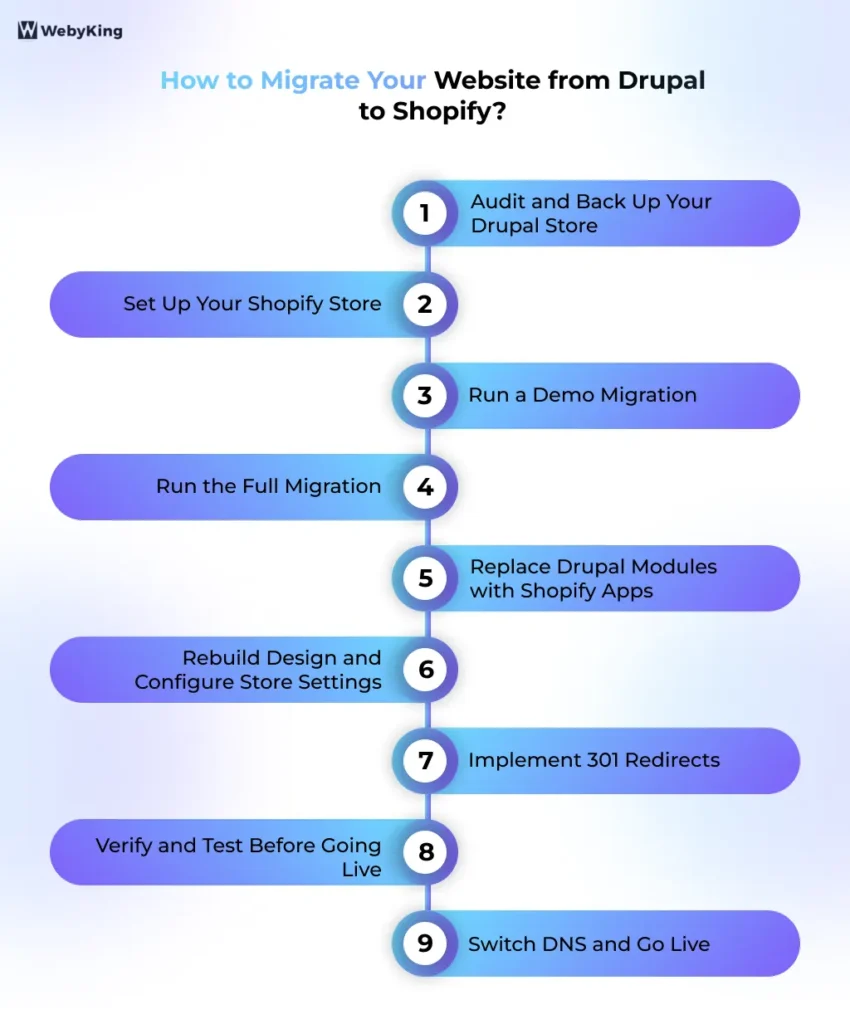
Step 1: Audit and Back Up Your Drupal Store
Conduct a full audit before touching anything:
- Count total products, variants, customer records, and orders
- List all Drupal modules in use — especially Commerce modules, SEO modules, and custom functionality
- Export a full list of all live URLs (use Screaming Frog or your Drupal sitemap)
- Record current SEO performance benchmarks: organic traffic, top-ranking pages, keyword positions
- Database backup: Drupal Admin → Configuration → System → Backup and Migrate (module), or via phpMyAdmin
- Files backup: Download /sites/default/files/ via FTP or your hosting file manager
- Store backups in two locations: local and cloud storage
- Products: Drupal Commerce → Catalog → Products → Export
- Customers: Drupal Commerce → People → Export (or via Views if standard export isn’t available)
- Orders: Drupal Commerce → Orders → Export
Step 2: Set Up Your Shopify Store
Create your Shopify account: Go to Shopify.com, start a free trial. Do not install any starter content — you’re importing an existing store.
Choose your plan:
| Plan | Monthly | Best For |
|---|---|---|
| Basic | $39 | Straightforward stores, starting out |
| Shopify | $105 | Growing stores, professional reports |
| Advanced | $399 | Scaling stores, advanced reporting |
| Shopify Plus | $2,300+ | High-volume, enterprise, B2B |
Most Drupal Commerce mid-market stores land on the Shopify or Advanced plan for feature parity.
Before importing any data — disable notifications: Settings → Notifications → disable all staff order notifications. Importing historical orders without doing this triggers a notification email for every imported order. Re-enable after import is complete.
Choose a theme: Your Drupal theme does not transfer. Twig templates are incompatible with Shopify’s Liquid theme language. Browse the Shopify Theme Store — free themes (Dawn, Craft, Sense) are production-quality. Premium themes run $180–$400 one-time.
Step 3: Run a Demo Migration
Before committing to full data transfer, run a demo migration using your chosen tool (Cart2Cart or LitExtension):
For Cart2Cart:
- Download the Kitconnect Package from Cart2Cart
- Unzip and upload to your Drupal store’s root folder via FTP
- In Cart2Cart, enter your Drupal store URL as Source Cart
- Enter your Shopify store URL and API credentials as Target Cart
- Select entities to migrate: products, categories, customers, orders, reviews, CMS pages
- Select additional options: 301 redirects, migrate product description images, preserve order IDs if possible
- Click “Start Demo Migration” — migrates approximately 10–20 items of each type
Verify the demo results carefully:
- Do product titles, descriptions, prices, and variants look correct?
- Do category names map correctly to Shopify collections?
- Do customer records show correct field mapping?
- Do images load correctly on product pages?
- Are old Drupal URLs generating correct 301 redirect mappings?
Fix any mapping errors in the tool’s configuration before proceeding. This step fprevents hours of post-migration cleanup.
Step 4: Run the Full Migration
Once the demo is approved:
- Initiate the full migration — the tool runs in the background on its own servers
- Do not add, edit, or delete any data on either store while migration is in progress
- Keep the migration status page open or wait for the completion email
- Download the migration results report when complete and check for any failed items
Step 5: Replace Drupal Modules with Shopify Apps
Every Drupal module providing functionality needs a Shopify equivalent:
| Drupal Module | Shopify Equivalent |
|---|---|
| Drupal Commerce | Native Shopify (no app needed) |
| Metatag | Native Shopify SEO fields |
| Pathauto | Native Shopify URL handles |
| Search API / Apache Solr | Searchie, Searchanise |
| Commerce Reviews / Fivestar | Judge.me, Yotpo, Stamped.io |
| Commerce Shipping | Native Shopify shipping + apps |
| Commerce Discount | Native Shopify Discounts |
| Webform | Hulk Contact Form, Shopify native forms |
| Mailchimp module | Klaviyo, Mailchimp for Shopify |
| Commerce Subscriptions | Recharge, Bold Subscriptions |
| Backup and Migrate | Not needed — Shopify manages backups automatically |
| Security Review / Paranoia | Not needed — Shopify manages security |
| Views | Shopify Collections, Liquid templates |
| Context / Panels | Shopify Theme Editor sections |
Step 6: Rebuild Design and Configure Store Settings
Customize your Shopify theme: Using the Shopify Theme Editor (Online Store → Themes → Customize):
- Upload logo and brand assets
- Configure color palette and typography
- Build homepage sections
- Recreate navigation menus under Online Store → Navigation
Configure payments, shipping, and taxes — these do not migrate:
- Payments: Settings → Payments (Shopify Payments eliminates transaction fees)
- Shipping: Settings → Shipping and Delivery (rebuild all zones and rates)
- Taxes: Settings → Taxes and Duties (recreate your tax rules)
Step 7: Implement 301 Redirects
In Shopify Admin: Online Store → Navigation → URL Redirects → Add URL Redirect
For stores with many pages, upload redirects in bulk via CSV through the same section.
Drupal-specific redirect priorities:
- All product pages (/node/123 and /product/name → /products/name)
- All category/taxonomy pages → /collections/name
- All blog posts → /blogs/news/post-name
- All static pages → /pages/page-name
- Your Drupal sitemap URL → submit new Shopify sitemap to GSC instead
Test every redirect by entering old Drupal URLs in a browser and confirming correct Shopify destinations. No chains — every old URL redirects directly to its final destination.
Step 8: Verify and Test Before Going Live
Data verification:
- Browse 20+ product pages — verify descriptions, images, variants, pricing
- Check collections are structured correctly
- Verify 20+ customer records imported with correct field mapping
- Spot-check order history accuracy
Functionality testing:
- Place a complete test order using Shopify’s test payment mode (Settings → Payments → Enable test mode)
- Test shipping rate calculations for multiple zones
- Test all discount codes
- Verify contact forms submit and reach the correct destination
- Confirm all app integrations are functioning
SEO and technical:
- Test sample of 301 redirects — minimum 20 across products, collections, blog posts, and pages
- Confirm no noindex tags on any live pages
- Run PageSpeed Insights and compare against Drupal baseline
- Test on mobile devices (not just browser simulation)
Step 9: Switch DNS and Go Live
Lower your domain’s TTL to 300–600 seconds at least 24 hours before switching. This makes DNS propagation significantly faster.
Connect your domain: Shopify Admin → Settings → Domains → Connect existing domain
Update in your domain registrar:
- A record → 23.227.38.65
- CNAME (www) → shops.myshopify.com
Propagation: 2–24 hours. Switch DNS during your lowest-traffic window — late night or early morning weekday.
Keep your Drupal store accessible for 30 days post-launch. You will discover missing redirects and overlooked pages during that window. Having Drupal accessible for reference and comparison makes fixes faster.
What Can Go Wrong During Drupal to Shopify Migration
Even well-planned migrations can fail if critical steps are skipped.
Common risks include:
- Loss of rankings due to missing 301 redirects
- Broken product URLs leading to 404 errors
- Metadata is not transferring correctly
- Duplicate content issues from incorrect canonical tags
- Traffic drops due to poor internal linking structure
The good news: every one of these risks is preventable with proper planning — which is exactly what the checklist below covers.
Detailed SEO Migration Checklist for Drupal to Shopify
This is the phase where migrations quietly succeed — or fail without immediate warning.
This is the most critical phase. SEO errors made here take months to recover from. Work through every item — do not skip.
If you want a broader step-by-step overview beyond SEO, this website migration checklist can help you structure the entire process more effectively.
Pre-Migration SEO Baseline (Do This Before Moving Anything)
- Export all live URLs from Drupal using Screaming Frog or your XML sitemap
- Record current organic traffic in GA4 (monthly visitors, top 20 landing pages)
- Export current keyword rankings from Google Search Console or Ahrefs
- Document your top 50 highest-traffic pages — these are your redirect priority
- Export all backlinks using Ahrefs or SEMrush — note which pages have the most referring domains
- Screenshot your current Core Web Vitals scores in PageSpeed Insights
URL Mapping and 301 Redirects
- Create redirect spreadsheet: Column A = old Drupal URL, Column B = new Shopify URL
- Map every product page — including /node/123 node IDs and Pathauto aliases
- Map every category/taxonomy page → /collections/name
- Map every blog post → /blogs/news/post-name
- Map every static page → /pages/page-name
- Upload all redirects to Shopify: Online Store → Navigation → URL Redirects
- Verify zero redirect chains — every old URL goes directly to its final Shopify destination
- Test 20+ redirects manually in browser after implementing
- Verify redirects return HTTP 301 (permanent), not 302 (temporary)
Metadata and On-Page SEO
- Confirm meta titles transferred correctly on all product pages
- Confirm meta descriptions transferred on all product pages
- Verify H1 headings exist on all pages — Shopify themes sometimes auto-generate H1s differently
- Check image alt text on product images — re-enter any missing
- Confirm canonical tags are pointing to correct Shopify URLs (not old Drupal URLs)
- Verify no duplicate titles or descriptions across key pages
Structured Data and Schema
- Confirm Shopify is generating Product schema on product pages — check with Google’s Rich Results Test
- Verify breadcrumb schema is present if your theme supports it
- Check that Organization schema is present on your homepage
- If you had custom Drupal schema, recreate using a Shopify schema app (JSON-LD for SEO, Schema Plus)
- Submit URLs to Google’s Rich Results Test to confirm structured data is error-free
Technical SEO
- Confirm SSL certificate is active — green padlock visible in browser
- Verify robots.txt is not blocking Googlebot — check yourdomain.com/robots.txt
- Confirm no noindex tags on any live pages (check view-source for noindex)
- Submit new Shopify XML sitemap to Google Search Console: yourdomain.com/sitemap.xml
- Request indexing for key pages via URL Inspection tool in Search Console
- Verify Google Analytics 4 is tracking sessions — place a test visit and confirm in real-time view
- Verify all advertising pixels (Meta Pixel, Google Ads conversion tag) are firing
Post-Launch Monitoring Schedule
- 48 hours post-launch: Check Search Console for crawl errors and 404s
- 7 days post-launch: Review impression and click data in Search Console
- 30 days post-launch: Compare keyword rankings against pre-migration baseline
- 30 days post-launch: Verify Core Web Vitals scores in Search Console (28-day rolling data)
- 60 days post-launch: Run full site crawl with Screaming Frog — fix any remaining broken links
What to expect: A 2–4 week ranking fluctuation period is normal as Google recrawls and reindexes the new site. With complete 301 redirects and preserved metadata, most stores stabilize at or above pre-migration traffic levels within 4–8 weeks.
If you answer YES to 4 or more:
✔ High maintenance cost
✔ SEO dependency
✔ Drupal 7
✔ Slow performance
→ You are READY to migrate.
If not, pause — fix internal issues first before switching platforms.
Drupal to Shopify Migration Cost Breakdown
Understanding all cost components before starting prevents budget surprises mid-project.
If you’re comparing budgets across different types of migrations, this detailed guide on website migration cost breaks down what to expect based on platform, complexity, and business size.
Migration Cost by Store Size
| Store Size | DIY (Tools Only) | Agency / Professional | Timeline |
|---|---|---|---|
| Small (under 500 products, no custom modules) | $30–$150 | $1,000–$3,000 | 2–4 weeks |
| Medium (500–5,000 products, standard integrations) | $100–$300 | $3,000–$10,000 | 4–8 weeks |
| Large (5,000+ products, custom modules, ERP) | $200–$500 | $10,000–$50,000+ | 8–16 weeks |
| Enterprise (Drupal 7 node structures, multi-site) | Not recommended DIY | $25,000–$75,000+ | 12–24 weeks |
What the Professional Cost Covers
A professional migration service typically includes: pre-migration audit, full data backup, migration tool setup and execution, data verification, theme setup, app configuration, 301 redirect mapping and implementation, SEO preservation tasks, QA testing, launch support, and 30 days of post-launch monitoring.
Ongoing Cost Change After Migration
Moving from Drupal to Shopify affects your monthly operating costs significantly:
| Cost Category | Drupal (typical mid-market) | Shopify (equivalent) |
|---|---|---|
| Hosting | $200–$2,000/month | Included in Shopify plan |
| Security & maintenance | $500–$3,000/month (developer) | Included in Shopify plan |
| Platform subscription | Free (but high TCO) | $39–$399/month |
| Developer retainer | $2,000–$10,000/month | $0–$500/month (apps) |
| Total estimated monthly | $3,000–$15,000+ | $200–$1,000 |
For most mid-market Drupal stores, Shopify’s total cost of ownership is significantly lower within the first 12 months — even after factoring in migration costs.
7 Common Mistakes in Drupal to Shopify Migrations
Almost every failed migration can be traced back to one of these mistakes.
These mistakes account for the majority of failed or painful migrations. Each one is preventable with proper planning.
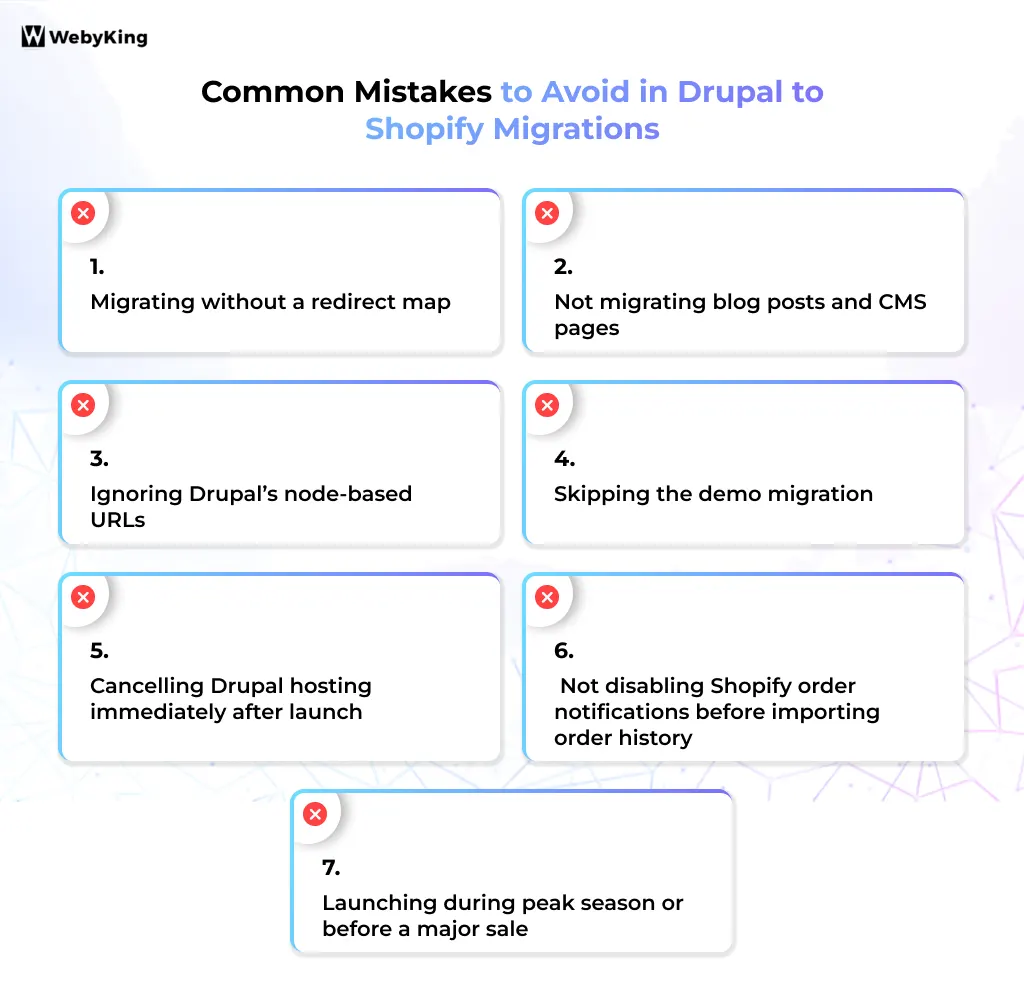
1. Migrating without a redirect map The most common and most damaging mistake. Switching to Shopify without 301 redirects for every changed URL means all organic traffic to old Drupal URLs hits 404 errors. Google deindexes those pages. Backlink equity is lost. Recovery takes months. Build the redirect map before migration starts — not after.
2. Not migrating blog posts and CMS pages Many teams focus on products, customers, and orders but forget blog content. Drupal blog posts often carry significant backlink equity and organic traffic. Every post that isn’t redirected loses its accumulated SEO value permanently.
3. Ignoring Drupal’s node-based URLs If your Drupal site uses /node/123 URLs — even if you have Pathauto aliases — those node IDs may still appear in Google’s index. Redirect both the node URL and the alias to the Shopify destination.
4. Skipping the demo migration Running a full migration without a demo first is the fastest way to discover data mapping errors after they’ve affected your entire store. Every reputable migration tool offers a free demo. Use it, verify it thoroughly, fix mapping errors, then run full migration.
5. Cancelling Drupal hosting immediately after launch You will encounter missing redirects, overlooked pages, and image reference issues in the first 30 days. Cancelling Drupal hosting on day one removes your ability to check the source of truth for any post-migration data question. Keep Drupal accessible for a minimum of 30 days.
6. Not disabling Shopify order notifications before importing order history If you import historical orders with admin notifications enabled, Shopify sends a staff notification email for every imported order. Importing three years of orders generates thousands of notification emails. Disable staff notifications before importing, re-enable after.
7. Launching during peak season or before a major sale Even a well-executed migration has a 2–4 week stabilization period. Launching right before Black Friday, a product launch, or your industry’s peak season means that stabilization period overlaps with your highest-revenue window. Schedule migrations for your lowest-traffic month with at least 2 months of buffer before any major campaign.
Expert Insight: Why Most Drupal to Shopify Migrations Fail
Most migration failures don’t happen because of the platform — they happen because of poor planning.
The most common issue is treating migration as a technical task instead of a business-critical process. Without proper SEO mapping, data validation, and post-launch monitoring, even a successful data transfer can result in traffic loss.
The difference between a failed migration and a successful one is not the tool you choose — it’s the level of planning and verification behind it.
Real-World Results: Drupal to Shopify Migration Case Study
Store profile: Mid-market Drupal Commerce store selling industrial equipment parts. Running Drupal 7 with a custom Commerce configuration, approximately 3,200 SKUs, 8 years of order history, and significant organic traffic from product and category pages ranking for long-tail part number keywords.
Migration driver: Drupal 7 end-of-life (January 2025) and escalating developer costs — the team was spending approximately $6,000/month on a developer retainer just for security patches, module updates, and Drupal maintenance with no feature development included.
Pre-migration baseline:
- Monthly organic sessions: 14,200
- Average position for top 50 keywords: 11.4
- Shopify plan selected: Advanced ($399/month)
- Monthly Drupal maintenance cost: ~$6,000
Migration approach: Professional migration service using LitExtension for data transfer (3,200 products, 47,000 customer records, 6 years of order history). Custom redirect map built from Drupal’s Pathauto alias export — 3,800 unique URLs mapped. Full metadata migration. Theme rebuilt on Dawn with custom Liquid modifications.
Timeline: 9 weeks from kickoff to DNS switch.
Results at 90 days post-launch:
- Monthly organic sessions: 15,800 (+11.3% vs pre-migration baseline)
- Average position for top 50 keywords: 9.1 (improved from 11.4)
- Monthly platform + maintenance cost: $1,100 (Shopify Advanced + key apps)
- Monthly cost reduction: ~$4,900
Key outcome: The migration paid for itself in reduced operating costs within 4 months. Organic traffic improved because Shopify’s Core Web Vitals scores were measurably better than the legacy Drupal 7 server configuration, which had slow TTFB (Time to First Byte) causing Google to reduce crawl frequency.
The lesson: Migrations done properly — with complete redirect coverage and preserved metadata — don’t cause ranking losses. They create them in the right direction.
Final Thoughts
Migrating from Drupal to Shopify is less about switching platforms and more about setting your store up for long-term growth. While Shopify simplifies infrastructure, security, and scalability, the real success of a migration depends on how carefully it’s planned and executed — especially when it comes to preserving SEO, handling redirects, and validating data.
A structured approach, like the one outlined in this guide, helps minimize risks and ensures a smooth transition without losing traffic or revenue. For businesses with complex data or high SEO dependency, working with experienced website migration experts like WebyKing can make the process more predictable and error-free — particularly during critical stages like data mapping and post-launch validation.
Ultimately, a well-executed migration doesn’t just maintain your current performance — it creates a stronger, more scalable foundation for future growth.
Not Sure If Your Store Is Ready for Migration?
If your store has complex data, SEO dependency, or custom Drupal setups, a poorly planned migration can cost you traffic and revenue.
At WebyKing, we help you migrate from Drupal to Shopify without breaking your SEO or data structure.
Get expert guidance before you make the move — and avoid costly mistakes later.

Frequently Asked Questions
Will I lose SEO traffic after migrating from Drupal to Shopify?
No — if the migration is done correctly, you should not lose SEO traffic.
The key is implementing 301 redirects, preserving metadata, and maintaining URL mapping. Most traffic drops happen due to missing redirects or technical SEO mistakes, not the migration itself.
How do I migrate from Drupal to Shopify step by step?
To migrate from Drupal to Shopify:
- Back up your Drupal store
- Export products, customers, and orders
- Import data using a migration tool (Cart2Cart or LitExtension)
- Rebuild design and settings in Shopify
- Set up 301 redirects
- Test everything before launch
- Go live and monitor SEO
What happens to my Drupal URLs after migration?
Drupal URLs do not carry over automatically.
You must create 301 redirects from old Drupal URLs to new Shopify URLs to avoid broken links and SEO loss.
Can I migrate from Drupal to Shopify without downtime?
Yes.
Your Drupal store remains live while you build your Shopify store. You only switch DNS after testing, resulting in zero customer-facing downtime.
What data can be migrated from Drupal to Shopify?
You can migrate:
- Products (titles, prices, images)
- Customers
- Orders
- Categories (as collections)
- Basic SEO metadata
However, themes, custom modules, and passwords cannot be migrated.
What is the best tool for Drupal to Shopify migration?
- Cart2Cart → Best for speed and automation
- LitExtension → Best for SEO-safe migration
- Matrixify → Best for custom data control
The right tool depends on your store complexity and SEO requirements.
How long does Drupal to Shopify migration take?
Most migrations take 2 to 8 weeks.
Large or complex stores with custom modules may take 8 to 16 weeks.
How much does it cost to migrate from Drupal to Shopify?
Migration costs typically range from:
- $30–$300 (DIY tools)
- $1,000–$10,000+ (professional services)
The cost depends on store size, customization, and SEO requirements.
Do I need a developer for Drupal to Shopify migration?
Not always.
Small stores can use automated tools without a developer.
However, complex stores with custom modules or SEO dependencies benefit from expert support.
Is Shopify better than Drupal for ecommerce?
For most ecommerce businesses, yes.
Shopify offers:
- Lower maintenance
- Built-in ecommerce features
- Better scalability
Drupal is better suited for highly customized or content-heavy platforms.
What are the biggest risks during migration?
The main risks include:
- Missing 301 redirects
- Broken URLs (404 errors)
- Metadata loss
- Poor internal linking
These risks are preventable with proper planning and testing.
Should I migrate to Shopify or upgrade Drupal?
- Upgrade Drupal → If you rely on heavy customization
- Migrate to Shopify → If you want lower costs, scalability, and easier management
For most ecommerce-focused stores, Shopify is the more practical choice.
I'm Ravi Makhija, Founder & CEO of WebyKing. I believe your website should be the hardest-working member of your team, building trust, generating leads, and creating opportunities 24/7. Through web design, development, SEO, and digital strategy, I help businesses build websites that become growth assets-not just digital brochures. Too many businesses invest in websites that look great but fail to deliver real business value.
Business owners deserve digital solutions that are simple, practical, and built around their goals, not unnecessary complexity. After all, your website shouldn't just represent your business; it should help grow it.


Need Help Migrating from Drupal to Shopify Smoothly?